How to Remove a 360 Photo from Google Street View
Find the right route for a Photo Sphere you own, a GoThru-published tour, or a Street View image you need to report.
A 360 photo can appear on a business listing, inside a connected tour, or among the photos in your Google Maps contributions. Where it appears does not tell you which account published it. Check that first. The route for a photo you uploaded is different from a request to remove someone else's image, and GoThru's whole-tour removal control is a separate action again.
If you're deciding what to do with a business tour rather than a single image, the Google Street View for Business guide explains the wider tour workflow. Here, the first decision is who published the image you want removed.
Start here: If you uploaded a Photo Sphere to Google Maps, find it under Your contributions → Photos and use Delete this photo. If you published a connected tour through GoThru, decide whether you need to address one panorama or remove the whole tour from Street View. If the image belongs to someone else, use Google's Report a problem route to request review. Google's removal instructions distinguish owner deletion from requests about other people's imagery.
Find the right removal route
Look at the image's attribution in Google Maps and check the account or tool used to publish it. Then decide what you want gone. Removing one rejected panorama to repair a tour is not the same task as withdrawing every panorama in that tour.
| What you found | What you control | Where to go |
|---|---|---|
| Your own Photo Sphere | The Google account that shared it | Google Maps → Your contributions → Photos |
| Your GoThru-published tour | The tour and its publishing account | GoThru Tour Details for whole-tour removal; diagnose one-image problems separately |
| Your Studio collection | The Street View Studio upload | Street View Studio → More → Delete |
| Someone else's image | A report, not the original upload | Open the image in Google Maps → Report a problem |
A business profile can display imagery from several contributors. Access to the profile alone is not proof that you can delete each image shown there. If you're unsure who published the photo, start with its attribution and the publisher account rather than using a tour-wide control.
Delete a Photo Sphere you uploaded to Google Maps
Google provides a direct owner route for a Photo Sphere shared to Maps. On a computer, sign in to the account that uploaded it and follow these steps:
- Open Google Maps and select the menu in the top left.
- Choose Your contributions, then Photos.
- Find the Photo Sphere you want to remove. Open its More menu in the top right of the photo.
- Choose Delete this photo.
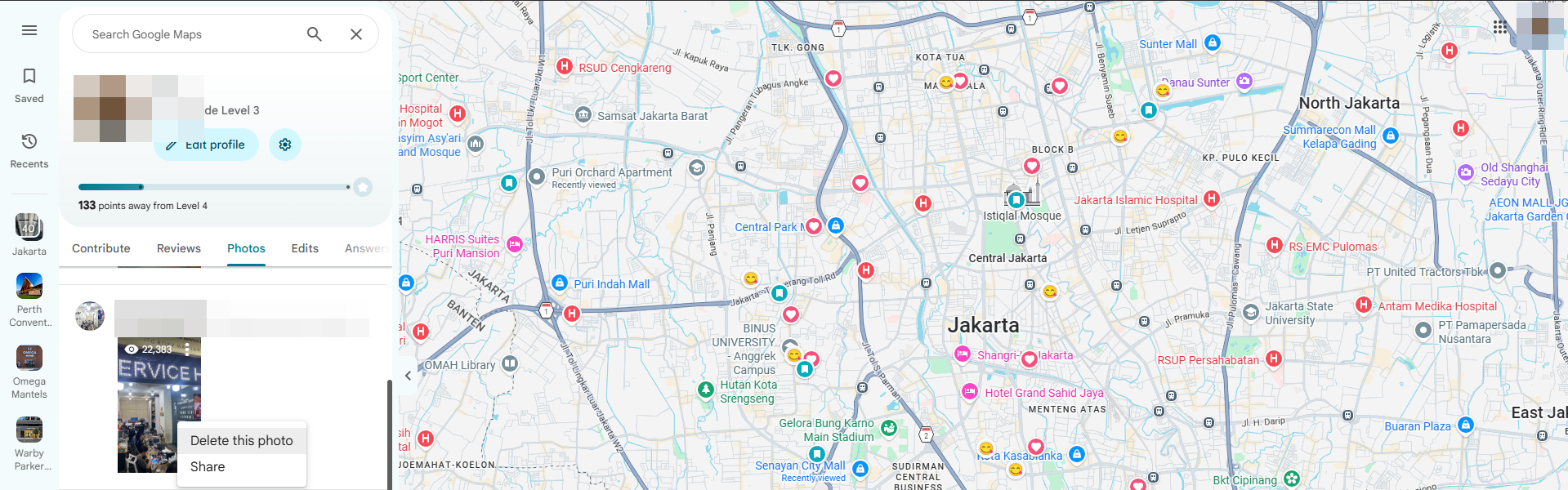
Those controls come from Google's instructions for Photo Sphere owners. Check that you selected the intended image before confirming. If the photo is not listed, check the publishing account and whether it was uploaded through a different workflow. Do not assume the old standalone Street View app is the current place to manage it.
Google lists a separate route for a street-level collection uploaded through Street View Studio. In Studio, find the video or collection, open More, and choose Delete. That action is for the Studio upload. It is not the button in GoThru's Tour Details screen.
If you plan to publish new 360 photos without a business listing after removal, use the no-listing publishing guide for that separate task. It does not change which account owns an older image.
An outdoor route assembled from 360 video through GoThru Street Builder follows another publishing workflow. Check how that route was submitted before treating it as a Maps Photo Sphere or a Studio collection.
If one image in a GoThru tour is wrong or rejected
Start with the particular panorama's status. A rejected image, a panorama in the wrong position, and an image you deliberately want to withdraw call for different checks. Deleting the entire tour would also affect the panoramas you intended to keep on Street View.
For a tour with missing or rejected panoramas, GoThru's Street View Status walkthrough shows how to locate affected images and describes deleting a rejected Google copy before correcting and republishing it. The Map Rejected guide covers its own correction workflow. These are repair cases. They do not establish that the same menu is a general-purpose delete control for every published panorama.
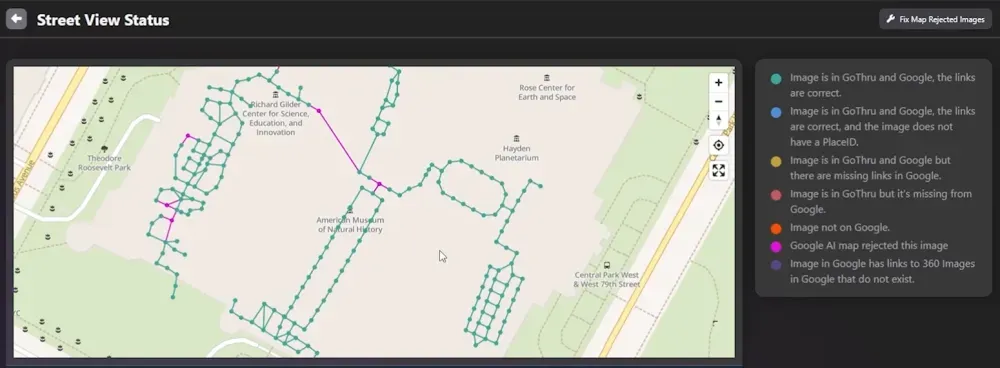
If the panorama appears in the publishing Google account's contributions, Google's single-Photo-Sphere route above may be the relevant owner path. First confirm the exact image and account. Before attempting a GoThru-specific selective removal, ask the GoThru product owner or support team to confirm the current control and what it removes. Do not use Delete from Street View on the entire tour to solve a one-photo problem.
If the problem is a misplaced image, identify whether the panorama is positioned incorrectly or the business address pin is wrong. Google's Maps error guidance has a separate route for correcting a place or address. Moving a business pin is not a substitute for reviewing how the panorama was positioned or published.
Remove an entire tour published through GoThru
If you intend to withdraw the whole connected tour from Street View, follow the GoThru tour-deletion walkthrough. It shows the tour control and confirmation. GoThru sends a removal request to Google, while the tour remains in your GoThru account for editing or republishing. Check the published tour afterward because Google's processing is separate.
For one affected panorama, check its status in the section above rather than using the whole-tour control.
Request removal or blur when you do not own the image
You cannot delete another contributor's Photo Sphere through your own GoThru or Google account. Open the image in Google Maps, choose Report a problem, explain the issue in Google's form, and submit the request. Google's 360 imagery guidance says it reviews requests concerning imagery the reporter does not own. A report is a request, not an automatic deletion.
Google-car Street View imagery has a separate privacy route. For example, Google's home-blur instructions say an owner or tenant requesting a residential blur must provide proof of address. An applied blur is permanent. If the issue is that an old view still shows construction or a former storefront, use Google's outdated-imagery feedback route. Google does not commit to a timetable for replacing that imagery. Uploading a newer photo is not a guaranteed way to change the default Street View scene.
Check what changed after your action
Keep the link to the specific image or tour before making a change. After submitting an owner deletion or GoThru removal request, revisit that link in Maps and check the account's contribution or tour status. If you submitted a report about someone else's image, look for a response from Google rather than treating submission as a removal confirmation.
A Street View removal and a GoThru project are separate records. GoThru's whole-tour process leaves the tour in your account. An image may also have copies in other places you manage. Check each destination you care about instead of assuming one action erases every copy.
If you plan to rebuild, use the connected-tour publishing guide for the creation and Maps verification steps. If you need to capture new panoramas first, the 360 camera guide covers capture options.
Keep the original panorama files when you have them. GoThru's older guide to downloading panoramas from Google describes a different way to save imagery, but its 2021 screen instructions may have changed. Download and reuse only images you have permission to use.