
How to Delete a Street View Tour Using the New GoThru Interface
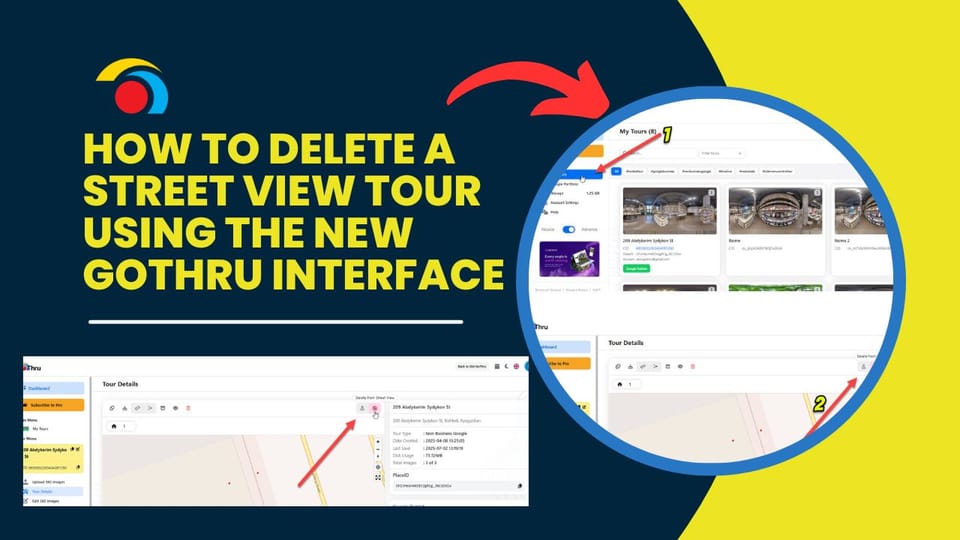
If you've published a tour to Google Street View using GoThru and need to remove it, the process is now simpler with the updated GoThru dashboard. If one panorama is missing, try the missing-image troubleshooting guide before removing the whole tour.
Step-by-Step Instructions
1. Login to GoThru
- Go to GoThru Dashboard and log in to your account.
2. Go to "My Tours"
- From the Main Menu on the left, click My Tours.
- This will open a page displaying all your virtual tours.
3. Select the Tour to Delete
- Find the tour you want to remove.
- Click on it to open the Tour Details page.
4. Click the "Delete from Street View" Icon
- Look for the trash can icon next to the SV Contribution button.
- Hover over it to confirm it says “Delete from Street View.”
- Click the icon to proceed.
5. Confirm Deletion
- A confirmation message will appear.
- Click Confirm to finalize the removal request.

✅ What Happens Next?
- GoThru sends a removal request to Google Street View.
- The tour may take a few minutes to several hours to be completely removed.
- The tour will remain available inside your GoThru dashboard for editing or republishing.
Note: Deleting the tour from Street View does not delete the tour from your GoThru account.
If you plan a replacement shoot with another provider, review what to ask a Street View photographer before hiring. Agree on who keeps the original files and who handles publication and later corrections. For another business tour, Google Street View for Business covers coverage and maintenance before the new shoot.