Commercial real estate virtual tours: Plan, review and share
A practical commercial-property tour guide for planning scenes, reviewing a visitor route and testing each sharing destination.
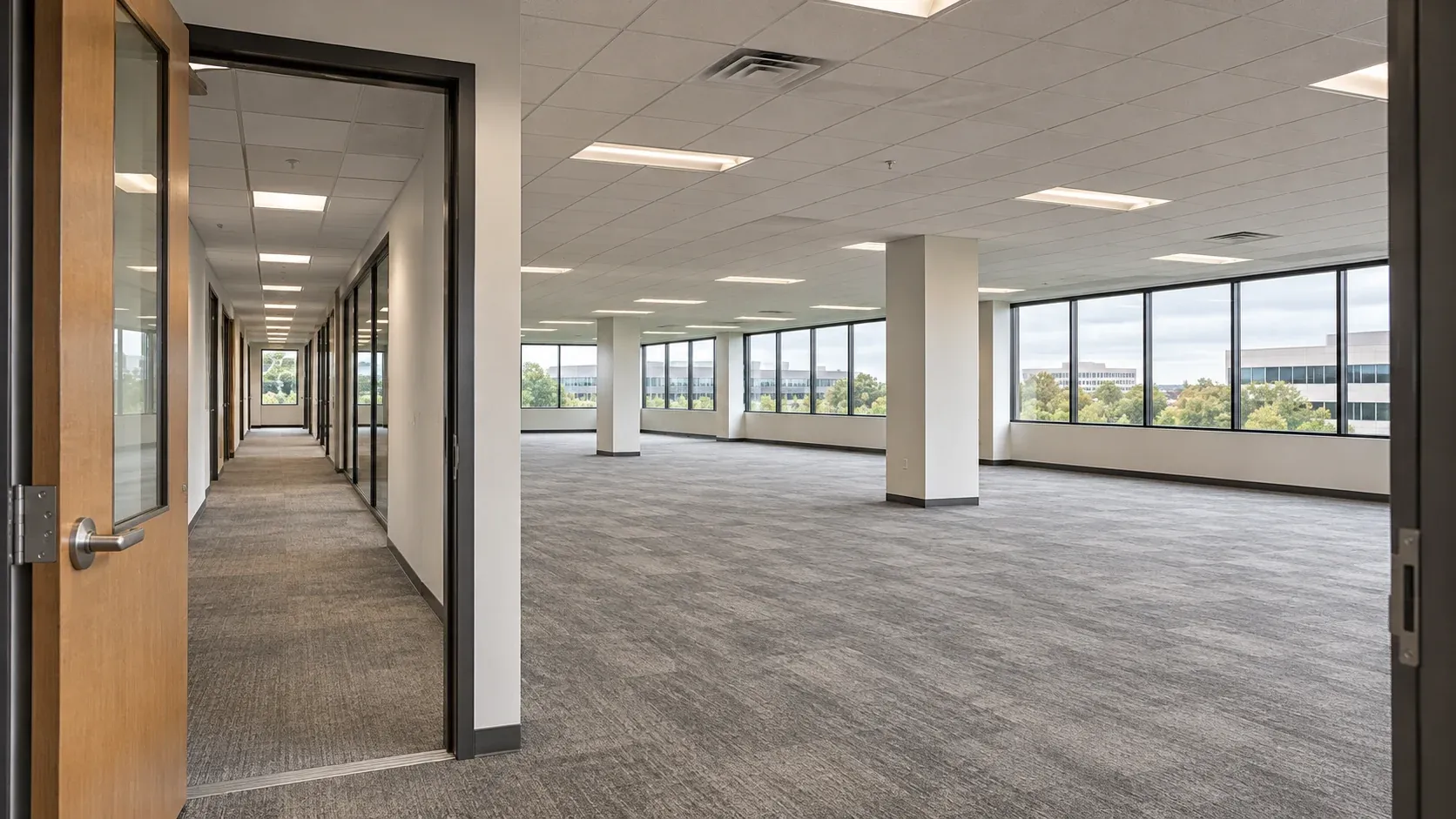
A prospective tenant considering an office floor needs to understand the entrance, the available space and the shared areas before deciding whether to visit. A retail operator may care more about the storefront and how customers reach it. Commercial real estate virtual tours work best when those questions determine what gets shown.
A commercial property virtual tour is an online view of a space that a prospect can inspect remotely. This guide covers the decisions from format through delivery for existing office, retail and industrial spaces. An unbuilt space requires a clearly labeled rendering instead of photographs of an existing property. A remote tour can help someone shortlist a property, but it cannot verify dimensions, conditions or suitability that require documents and an in-person inspection.
Start with the space the prospect needs to inspect
Plan the route around an actual availability, not the whole building by default. An office prospect may need to move from the arrival point to the available floor, then see how meeting rooms, circulation and shared amenities relate. Someone considering a retail unit needs to inspect the public approach and the unit itself. An industrial prospect may need to understand access, work areas and the separation between them. Only show operational or restricted areas when the owner has approved their inclusion.
| Property and prospect | Useful tour route | Separate information to supply or verify |
|---|---|---|
| Available office floor | Entry, lift or stair arrival, available rooms and relevant shared areas | Current floor plan, availability and fit-out details |
| Retail unit | Public approach, storefront, sales area and approved back-of-house space | Unit dimensions, access terms and permitted uses |
| Industrial space | Approved entrance, work area and circulation between zones | Access specifications, clearances and operational documentation |
The table is a planning aid, not a claim that one route suits every property. Ask the broker or property manager what prospects repeatedly request, then confirm which areas can be shown and which documents are current. Inspace's commercial-tour guide also distinguishes office, retail and industrial viewing jobs and the limits of remote inspection.
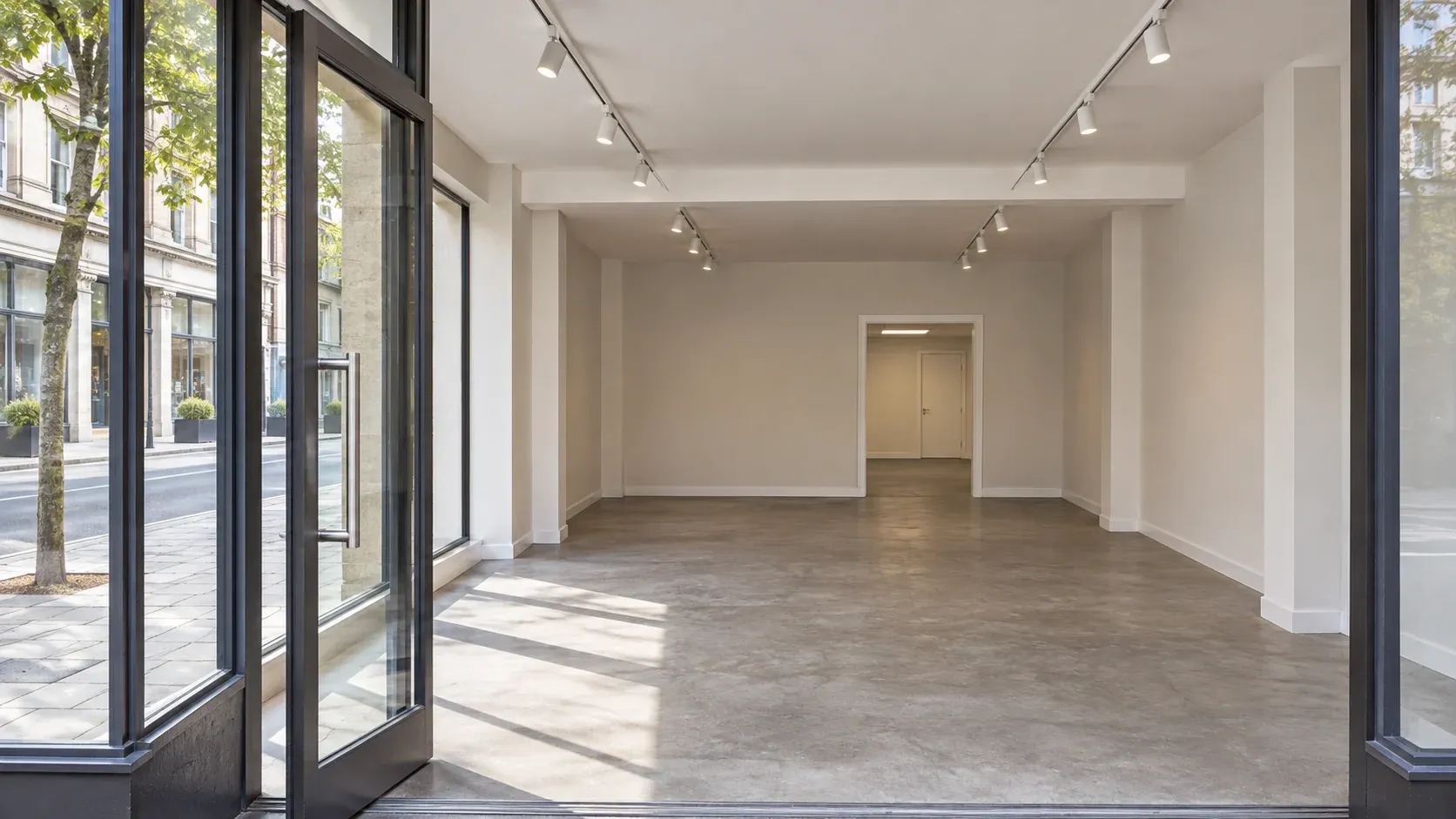
A tour should name the available unit or floor accurately. If the building has several availabilities, make it obvious which scenes belong to each one. Otherwise a visitor may mistake a shared amenity or another tenant's area for part of the offered space.
Choose a tour format that matches the decision
A connected 360 photo tour lets a visitor turn within each panorama and move between linked capture points. It is useful when the property exists and the reader needs to inspect finishes, routes and the relationship between visible spaces. It does not, by itself, produce a measured spatial model.
A scanned 3D tour can add a model-level view or measurements when the capture system and output support them. A video walkthrough follows a route chosen by its producer, which can make for a concise introduction but gives the viewer less control. A rendered tour can present an unbuilt space based on plans, provided the rendering is clearly identified as a proposal rather than a photograph of existing conditions. Inspace separates linked panoramas, scanned 3D and CGI by production method. Matterport's video-versus-3D explanation describes the viewer-control distinction. Its residential sales claims should not be carried over to a commercial listing.
Choose the output before comparing vendors. If a prospect needs authoritative dimensions, supply verified plans or a separately validated measurement workflow. Do not ask a panorama viewer to prove a ceiling clearance. If the goal is an accessible first look at an existing fitted space, connected panoramas may be sufficient. The real estate virtual tour software guide covers the broader output and software decision.
Plan the capture and get approval for what appears
Sketch a route from the arrival point to the space on offer. Include the turns a visitor would need to make at a corridor or doorway, and give each floor a clear transition. Decide the opening viewpoint before images are captured. Starting in an unlabeled corridor makes a large property harder to understand than starting at a recognizable entrance or the available unit.
Record each zone with its purpose and review owner. A practical capture list might include the entry, the available floor, a relevant amenity and the approved route between them. The property team should decide whether occupied rooms, security controls, documents, faces, identifying details or neighboring tenants are visible. Get the appropriate permission to capture and distribute the material, then review the actual images before making them available. The requirements for consent and disclosure depend on the property and jurisdiction, so the owner should resolve them with the responsible team rather than assume a tour platform has done so.
For face and plate redaction, GoThru's AI Blur guide shows how to inspect automatic selections and correct missed details. That image review does not replace property-team approval of occupied or restricted spaces.
Keep the spatial description honest. An empty unit can be shown as empty. If a rendering or staged image illustrates a possible fit-out, label it so the visitor can distinguish a proposal from the existing space. Include up-to-date availability and specifications elsewhere in the property package. A tour is one part of that package.
For the capture and stitching decisions, use the property-tour camera guide. The capture-to-sharing guide walks through preparing panoramas and connecting a property tour. This commercial guide stays focused on which scenes a prospect needs and who signs them off.
Build navigation a first-time visitor can follow
Give each panorama a clear next move. A visitor should be able to reach the offered space from the entry, inspect it, move to relevant common areas and return without guessing. Test the reverse route as well as the intended sequence. For multiple floors or units, group the scenes so a change of level or availability is apparent.
The Rantatie Business Park 360 tour is a live example to inspect. Look for a route between viewpoints and a way back, then compare that path with the entrance-to-unit route your prospects need.
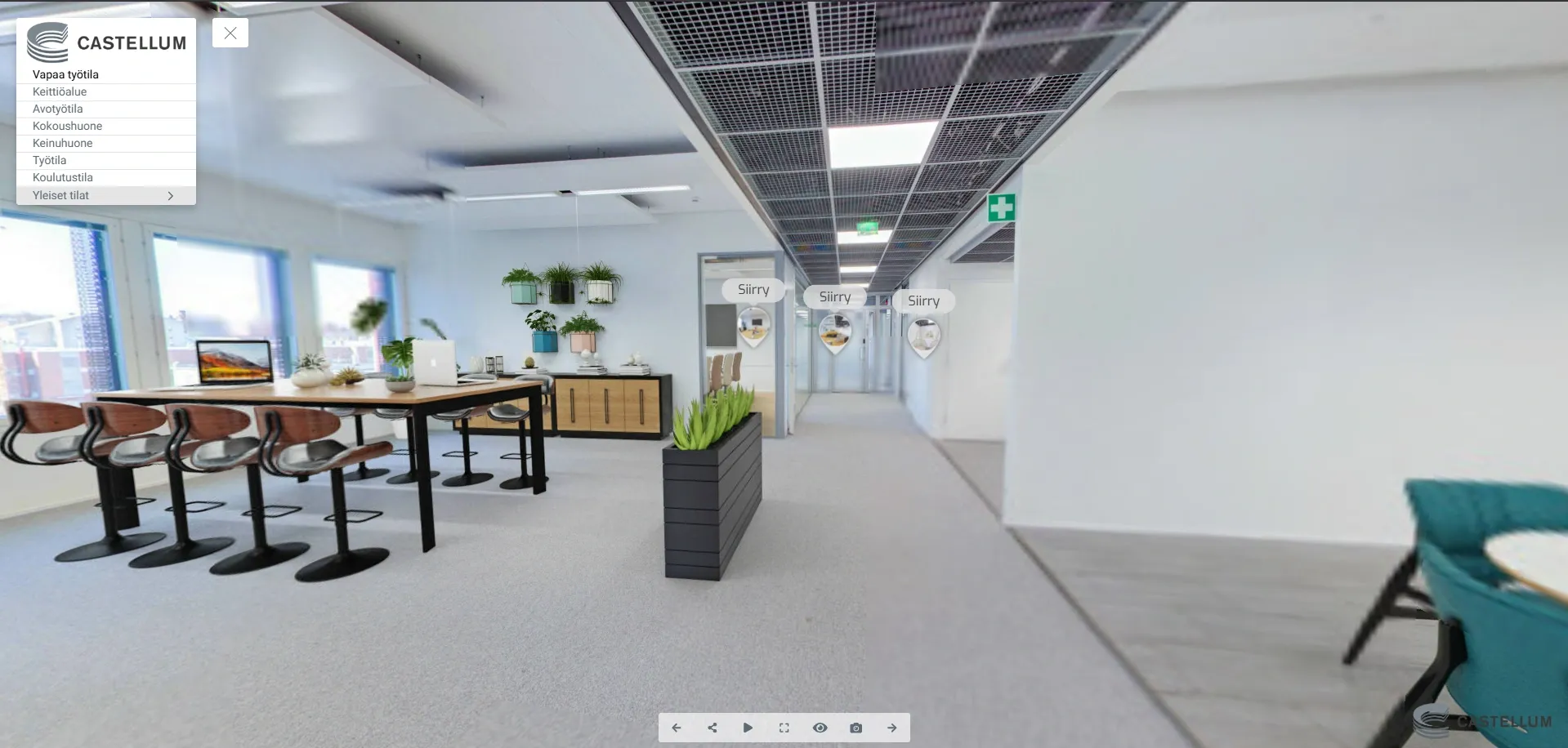
GoThru's Tour Editor instructions describe a route for uploading prepared JPG panoramas, connecting viewpoints and reviewing the tour. The broader real estate creation guide covers the path through activation and sharing. These are connected panorama workflows. They do not establish measured 3D geometry, automatic floor-plan creation or a promise that every plan includes the same delivery controls.
The opening scene and the path matter more than decorative labels. Show the visitor where they are before asking them to choose another unit. If a label identifies an office suite or a tenant space, have the property team confirm that it is accurate and approved for public display. Where a tour includes contact information, check the actual visitor view rather than relying on the editor's settings screen.
The GoThru walkthrough below shows an optional hotspot connection and how to adjust the landing view. Watch the return link, then test whether a visitor can reach the offered unit from the entrance and back.
Review the tour as a prospect would
Open the finished tour on a phone and a desktop browser without editor access. A tour that works for its creator may still hide the next scene, expose a private detail or show an outdated availability to a new visitor.
Use this acceptance check before sharing:
- Orientation. Does the opening scene identify the property or the available unit? Can the visitor find the promised space from there?
- Navigation. Can someone move through every approved zone, change floors where needed and return to the starting point? Are connections pointing to the right places?
- Image and content. Are panoramas sharp enough to inspect, with tolerable seams and exposure? Are labels, unit names and available-space descriptions current?
- Privacy and permission. Do the images show people, documents, personal details or restricted areas that need removal or further approval? Has the property owner reviewed the visitor-facing version?
- Next action. Is there a working way to contact the right broker or reach the property information? Test any visible buttons and links as a visitor.
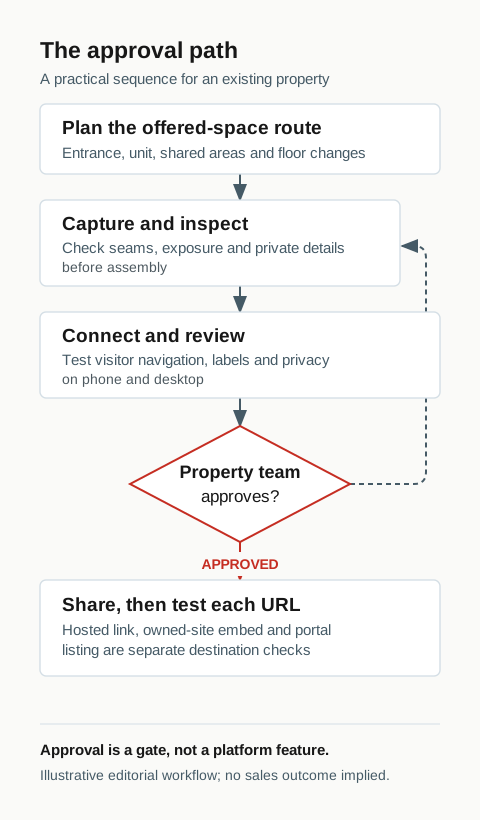
Save the review date, reviewer, corrections and approved version alongside the tour. If an available floor changes after publication, that record makes it easier to identify which scenes and destinations need another check. This is a proposed editorial checklist, not a claim that it has been tested on a GoThru customer property.
Share the tour and check every destination
A hosted tour link, an embed on your own site and a tour placed on a third-party listing are separate outcomes. Test the hosted link first in a logged-out browser. If you control the brokerage or property website, place the approved embed and check the page itself on phone and desktop. For any listing portal, obtain that destination's current media and link rules before assuming the tour will be accepted or displayed.
For an agent handing the approved tour to a listing, the agent listing workflow covers the approval-to-listing checks in more detail.
GoThru's embed guide says embed code is available after a hosted tour is activated and describes previewing it on the destination website. Availability and plan terms still need confirmation in the account used for the project. An embed pasted into a page is not the final check. Open the published page, verify that the tour loads, and make sure its labels and contact route match the listing.
Keep a short delivery log with the hosted URL, each destination URL, the person responsible and the last checked date. If a unit is let, a floor changes or a contact leaves the team, update the relevant tour information and revisit every place where the old version is displayed. A working GoThru-hosted link does not prove that another platform has accepted it.
The commercial-property tour earns its place when the prospect can inspect the relevant space, understand what the imagery represents and reach the next step. Start with an approved route, review the visitor view and test the actual destination. If you are ready to assemble a connected panorama tour, explore GoThru Virtual Tour Creator. Check its current account and hosting terms before committing to a delivery plan.