How to create a virtual tour for real estate: Capture to sharing
Plan 360 viewpoints, prepare panoramas, connect rooms in a tour editor, then test and share the hosted property tour.
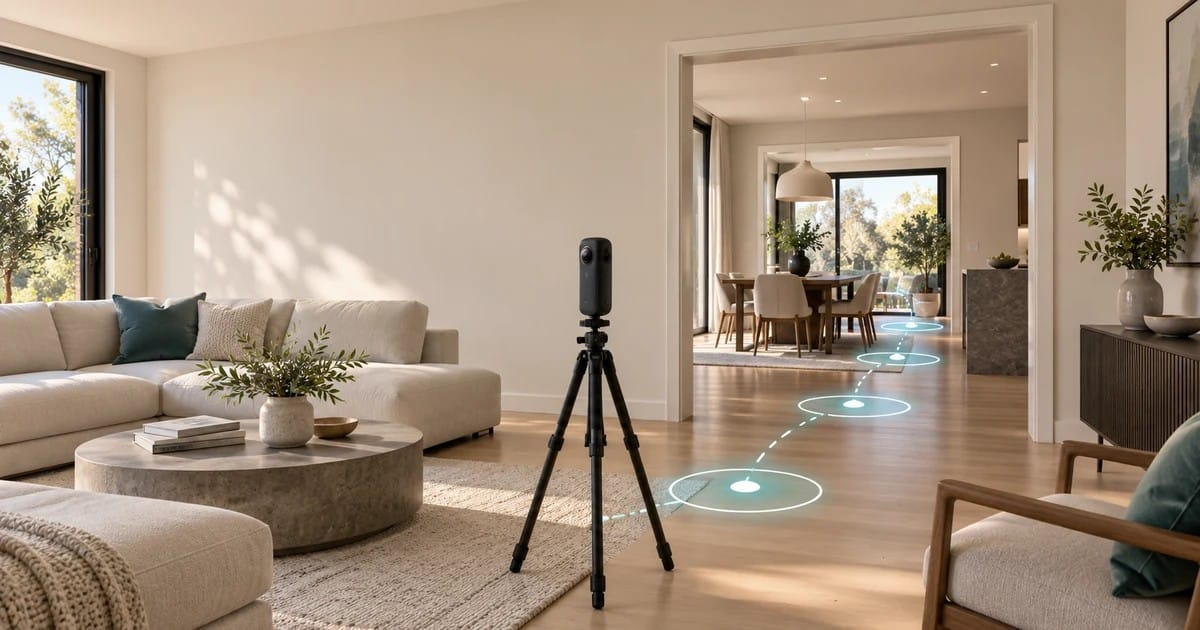
A useful property tour lets someone enter at a sensible point, move between rooms, and understand how the spaces connect. To make one, plan the viewpoints, capture and prepare 360 panoramas, connect neighboring scenes in a tour builder, then test the hosted viewer before sharing its link.
This guide follows a panorama-based tour. A video walkthrough plays in a fixed sequence; a measured 3D model has a different capture and output process. If you're still deciding which format or builder fits your listing, start with the real estate virtual tour software and workflow guide.
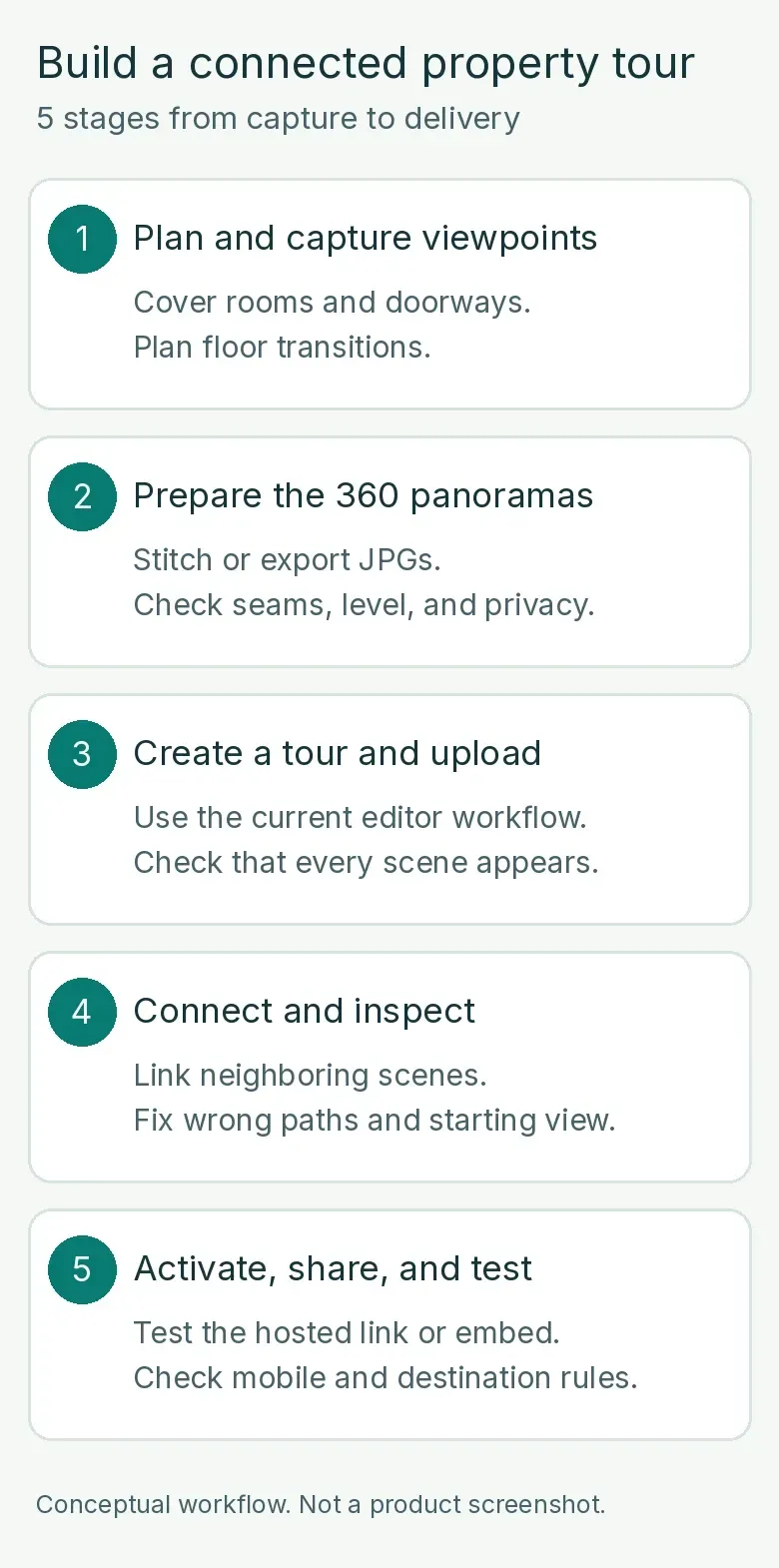
Conceptual workflow. The source images, editor connections, and hosted link are separate things to check.
Plan the route before you shoot
Walk the property as a visitor would. Mark an entry scene, the main living areas, the routes through doors and halls, and any stairs or level changes. A simple sketch is enough. Its job is to tell you which viewpoints need a clear transition, not to prescribe the same number of shots for every room.
Stand on each proposed camera spot and look in every direction. A 360 image will include what's behind the lens as well as what's in front of it. Remove documents, family photographs, visible access codes and anything else the owner doesn't want shown. Check mirrors and windows for reflections. Confirm you have permission to capture and publish the property before shooting.
A doorway often needs a viewpoint on both sides so the visitor understands where the next room begins. If the home has multiple floors, keep the capture sequence and eventual navigation clear at the stairs. GoThru's specific Insta360 and Street Editor property-capture guide shows a doorway-and-level approach. That app workflow is one route, not a required step for every camera or tour.
For a camera-based example of viewpoints at doors and transitions, see GoThru's real-estate capture walkthrough. Your property and capture setup will determine the time needed.
Capture suitable 360 panoramas
Use a capture method that produces full 360 panoramas compatible with the builder you've chosen. A regular flat room photograph will not turn into a spherical scene merely because it's uploaded to tour software. A stable camera position helps keep the horizon and room proportions consistent; keep the camera out of a mirror's view where possible.
Work along the route you marked rather than shooting only the most attractive rooms. Capture the entry, connecting spaces and usable transitions. Before leaving a room, open its image in the camera's preview or your capture app and check that the scene is complete, reasonably level and free of obvious motion or stitching problems. Retake it while you're still on site if a critical doorway is missing.
If you use the documented GoThru Street Editor route, the app's capture sequence and upload can create a tour through its own workflow. If you already have suitable panoramic files from a camera or another capture process, the Virtual Tour Editor instructions describe a separate upload-and-connect route. Follow the one that matches your files and available product access; don't combine control names from the two interfaces. If you're choosing between builders rather than following a GoThru procedure, use the separate real estate virtual tour software comparison as a starting point, and verify each product's current terms.
Prepare the panoramas and check privacy
Image stitching creates a single panorama from camera captures or source frames. Tour connection comes later: it tells the viewer which panorama to open next. Keeping those tasks separate prevents the common mistake of assuming that an uploaded set of finished panoramas already has a usable room-to-room route.
For the documented Virtual Tour Editor route, prepare JPG 360 images. GoThru's Tour Editor guide lists a minimum panorama resolution of 5300 × 2650 pixels for that route. Check your exported file's dimensions and preview it before upload; don't apply this specification to every camera or GoThru workflow without checking its current instructions. An Insta360-specific file-transfer and JPG preparation demonstration can help if your source files are in that camera's native format.
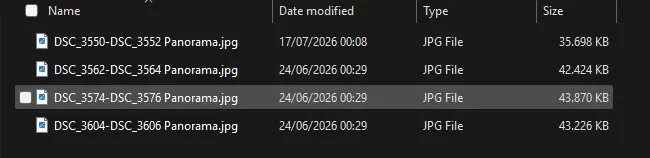
Review the entire sphere for a broken stitch at a doorway, a tilted horizon, mismatched exposure, visible camera operator, faces, license plates, documents and screen content. GoThru has an auto-blur demonstration, but automated detection is only an aid; inspect every scene manually. Keep the original files and your approved, privacy-checked exports distinct so you know what was actually uploaded.
Create a tour and upload the panoramas
With prepared JPG panoramas, follow GoThru's documented Tour Editor route. From the dashboard, select Create New Tour, then Create Virtual Tour Using Virtual Tour Editor and name the project. In the uploader, use Browse Files or drag the images into the upload area. Wait for the upload confirmation before working on connections.
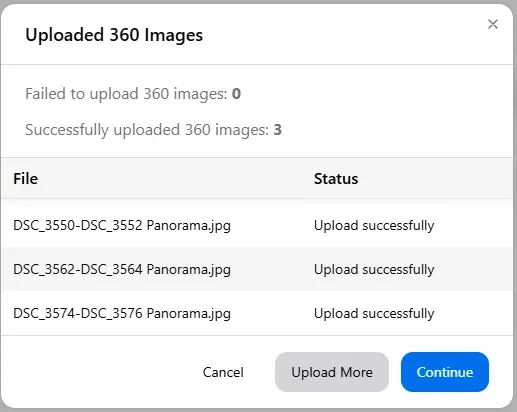
Check the scene inventory against your capture sketch. Is the entry present? Are the halls and stair landings there, as well as the showcase rooms? A tour can contain every image you selected and still have an unusable path if the transition scenes were never captured. Add or replace missing panoramas before spending time styling the viewer.
Watch GoThru's Real Estate Virtual Tour - Easy demonstration to see upload, scene ordering and the finished viewer. Follow the written steps here as you build your own tour.
Connect rooms and test the path
Start with the entry panorama and connect it to a neighboring viewpoint. The Tour Editor guide describes opening the Panorama Connector from a scene, adding adjacent panoramas, and using Auto Link where available. It also says to adjust the proposed paths manually when needed. An automatic connection is a starting point for review, not proof that a visitor will land in the right room.
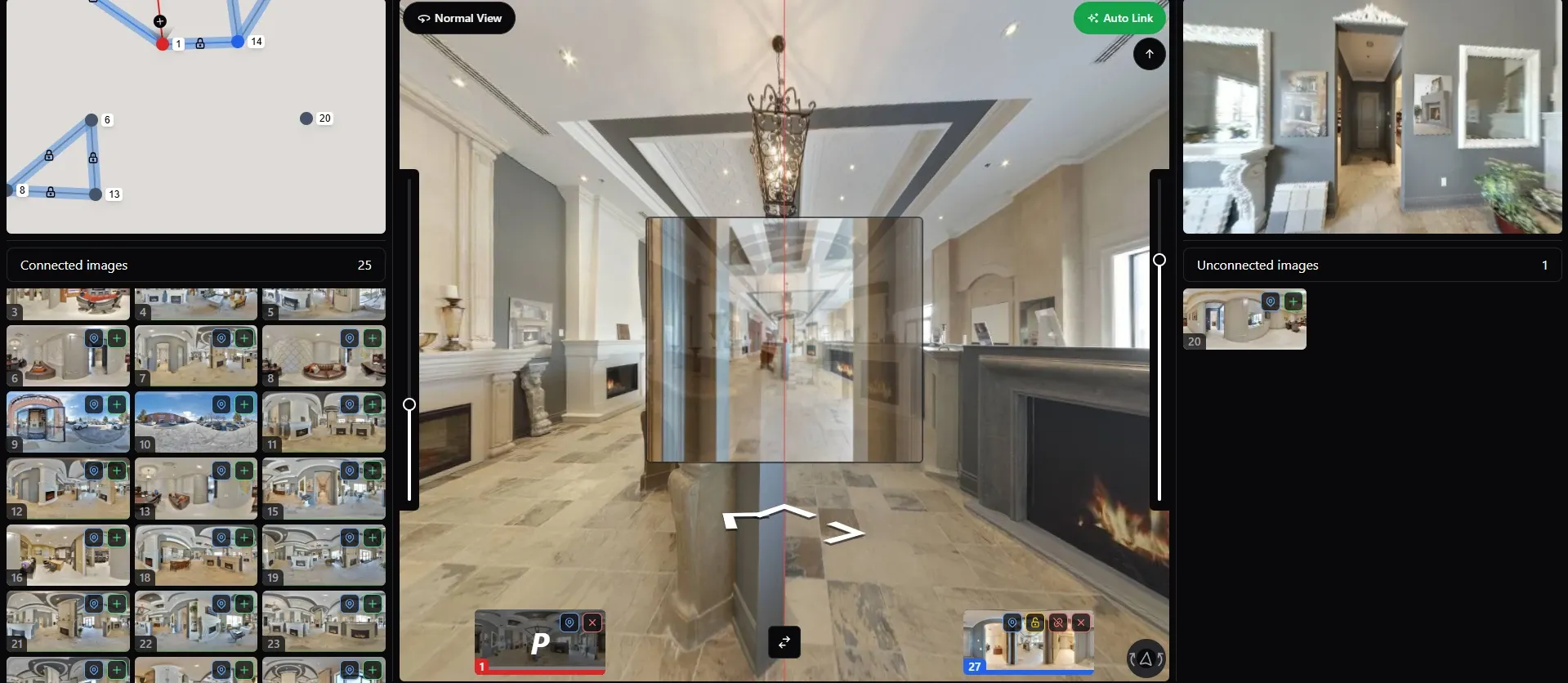
Open the viewer and follow the same route a buyer would take. Move from entry to living area, into the next room, then back. Check that each link points to the expected scene and that the view faces a useful direction on arrival. Test stairs and level navigation separately. If a link skips a hallway or jumps to an unrelated room, correct it in the editor and retest both directions.
Information hotspots are optional. A hotspot describing a feature is different from a connection that moves the visitor between panoramas. GoThru's Pano Link Hotspot tutorial shows an additional visitor-navigation option. A hosted-tour connection does not publish a private listing on Google Street View.
Add orientation, then review the visitor view
A sensible starting scene and clear room sequence do more for orientation than a crowded menu. If your tour setup offers a side menu, floor map or scene carousel, add only what helps someone find their way. GoThru's creator page describes these presentation options; availability and configuration depend on the actual workflow and plan. A carousel selects scenes. It does not calculate the dimensions of a room.
Add factual information where it answers a visitor's question. If you include a room measurement, obtain it from an approved property source and check its accuracy; do not infer it from a panorama. Avoid putting the full address, access details or private contact information inside a tour unless the owner has explicitly approved that display.
Review the result as a visitor rather than only in the editor. Can someone tell which way to go from the entry? Does the menu agree with the scenes shown? Are any rooms mislabeled or hidden behind a broken link? Open every scene at full viewing size so a small preview does not conceal a privacy problem.
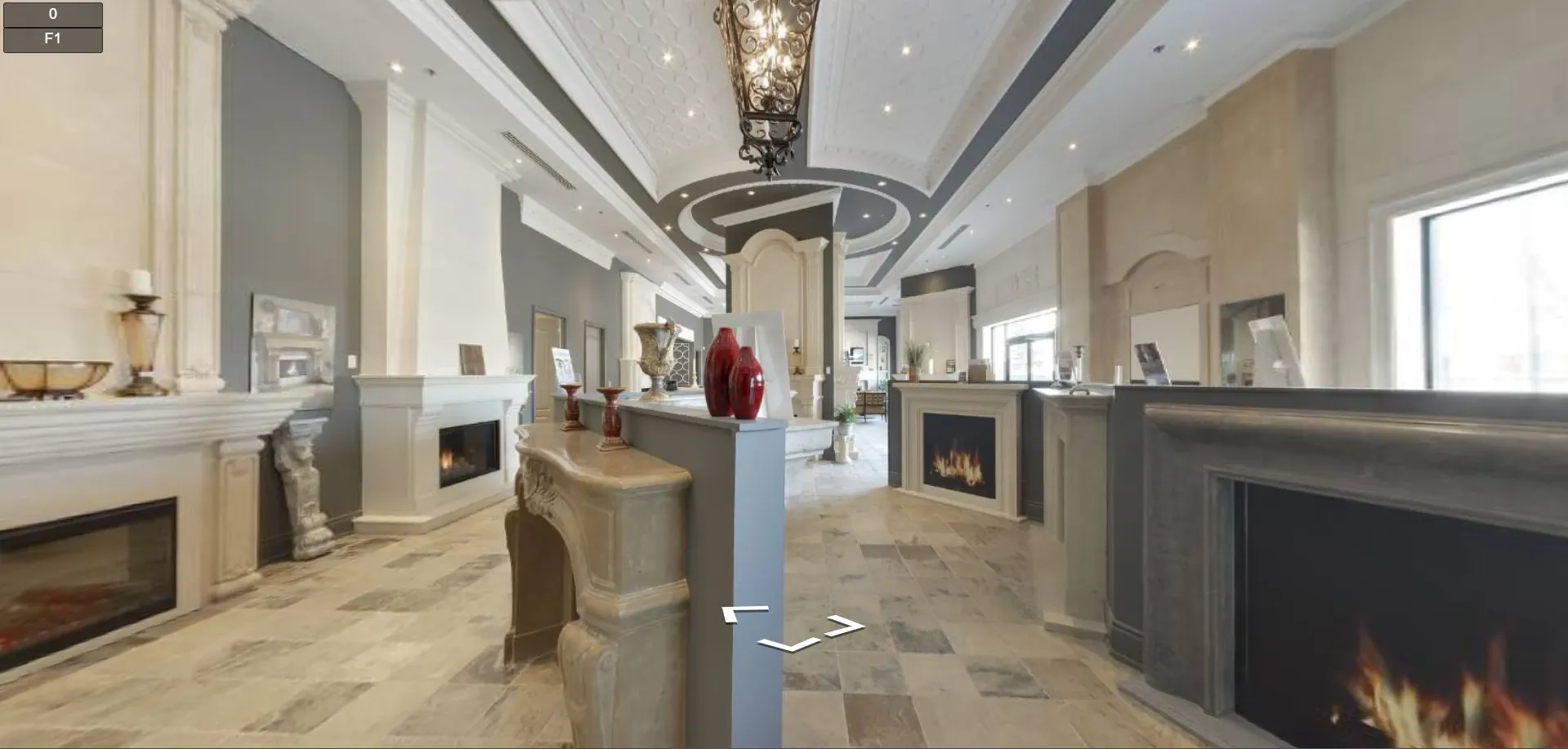
Customize the tour with a real-estate menu and controls
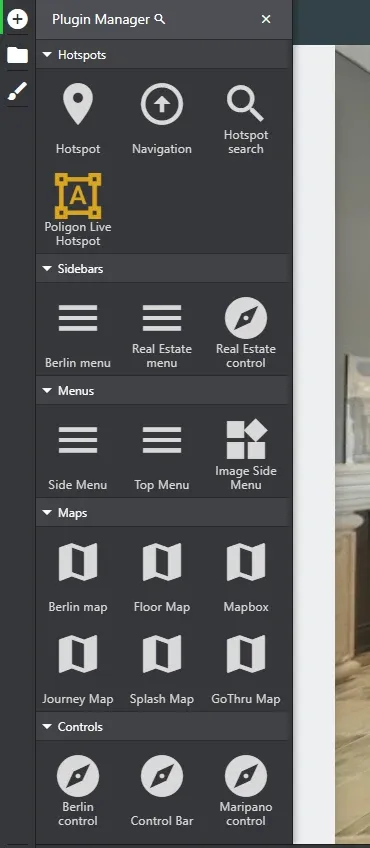
Once the room-to-room route works, use GoThru's Overlay Editor to decide what visitors see around the panoramas. If your account has access, open the Plugin Manager with the + button. It lists Real Estate menu and Real Estate control under Sidebars in this example. The Real Estate menu can present approved property details, gallery images and contact information. The Real Estate control bar offers on-screen buttons for visitor information. Choose the elements that help someone understand the property.
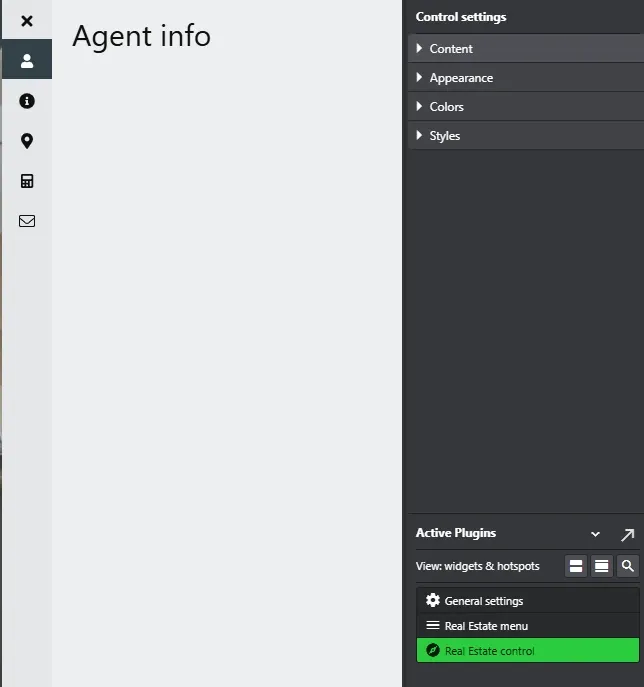
In the editor, Real Estate menu and Real Estate control appear in Active Plugins. The control settings shown here have Content, Appearance, Colors and Styles panels. Adjust the available layout and colors to suit the client's approved presentation. Check the room labels, contact details and any gallery images before sharing. Preview the overlay on desktop and phone so its controls remain readable without crowding the tour. Available plugins and settings may depend on the account and tour setup.
Activate and share the hosted tour
The Tour Editor documentation describes activating a hosted tour, obtaining a shareable link and, where available, generating an embed for an owned website. The relevant activation and hosting terms depend on the current plan. Check the live account and current pricing page rather than using a price from an older tutorial.
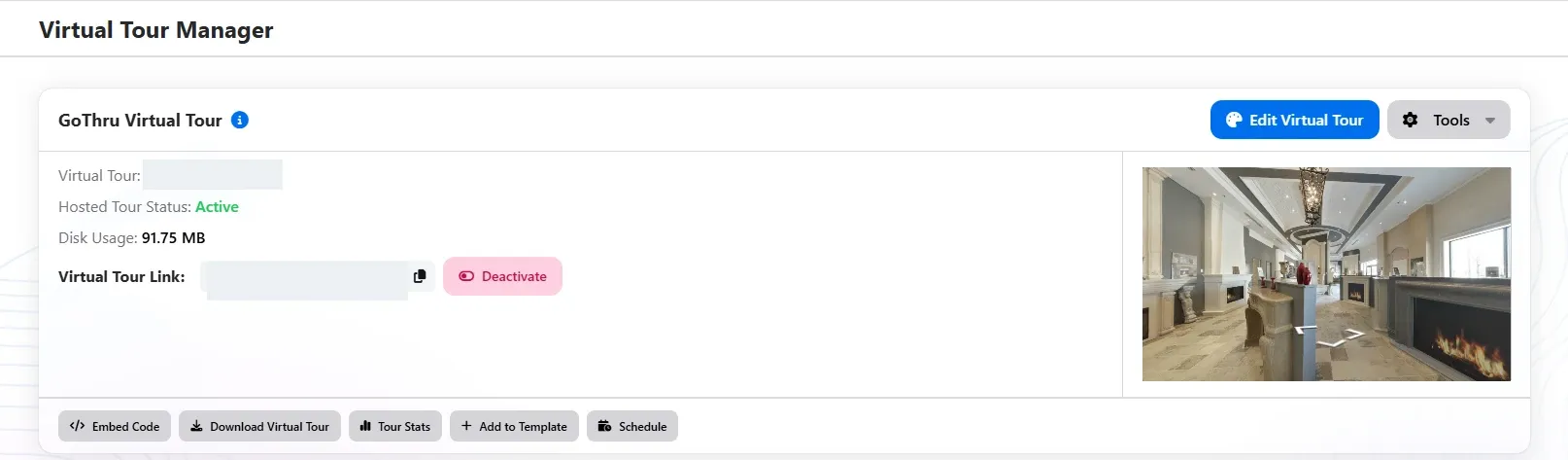
Copy the final link and open it in a separate browser session that is not logged in to the editor. Test it on a desktop and a phone. Start at the intended entry, move through every important room, try the return links, and check that images load and controls fit the smaller screen. If you use an embed, test the embedded page too; a working hosted URL does not by itself prove that an embed will behave well in its destination layout.
For a listing portal or MLS, check the exact destination's current media rules and the property's permissions before submitting a link or embed. A website URL, a video tour and a portal's own 3D-tour product can have different rules. This hosted property-tour workflow does not require Google Street View publishing. If you also need a Maps tour, that is a separate delivery decision.
Final quality check
Before sending the tour to an agent or owner, follow one complete visitor journey:
- The entry scene opens from the approved link without editor access.
- Each important room is reachable, and doorways and floor changes make sense in both directions.
- Room names, optional hotspots and starting view match the actual property.
- Full-size panoramas contain no unapproved personal details or visible capture mistakes.
- The desktop, mobile and intended listing destination each display the tour as expected.
The last check is the visitor's route through the property. If you have approved panoramic images ready, explore GoThru Virtual Tour Creator to assess the creation and hosted-viewer workflow for your listing.