
Scale Up Images
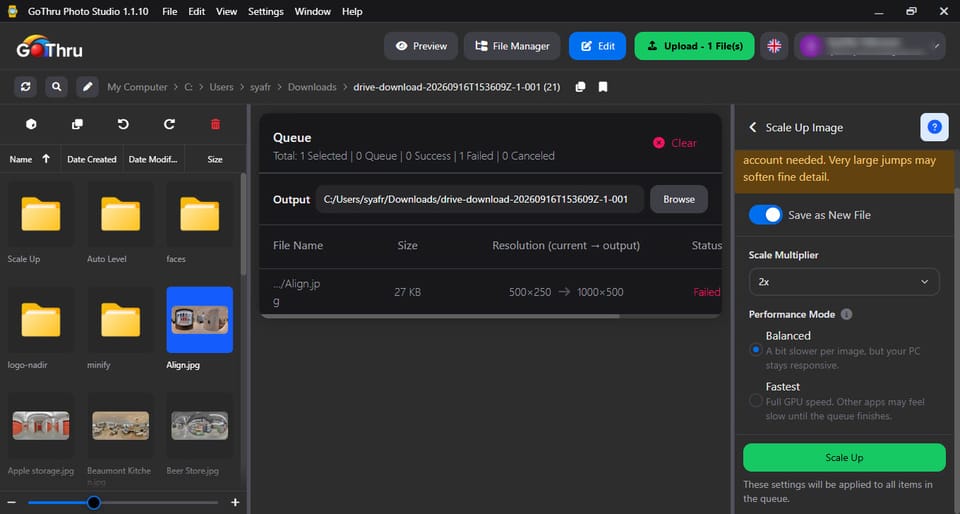
What is Scale Up Image?
It increases the resolution of your images, adding pixels to make them larger and sharper — ideal for printing or high-resolution displays. For best results, upscale moderately; very large jumps may soften fine detail.
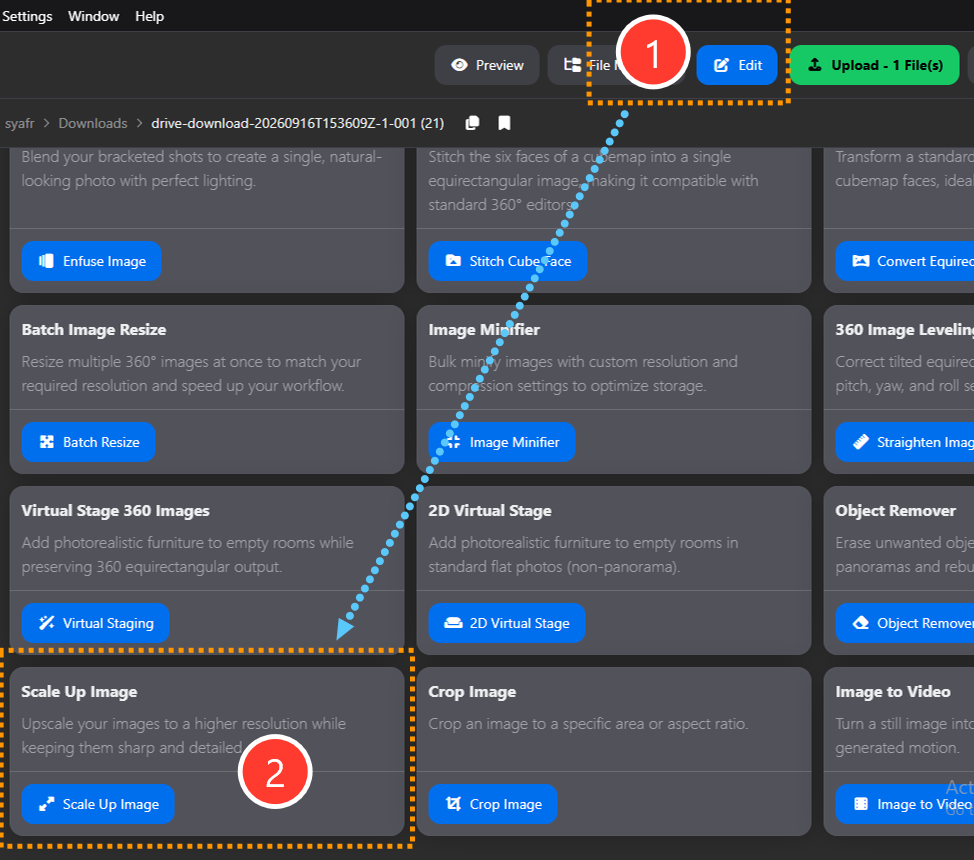
How do I use Scale Up Image?
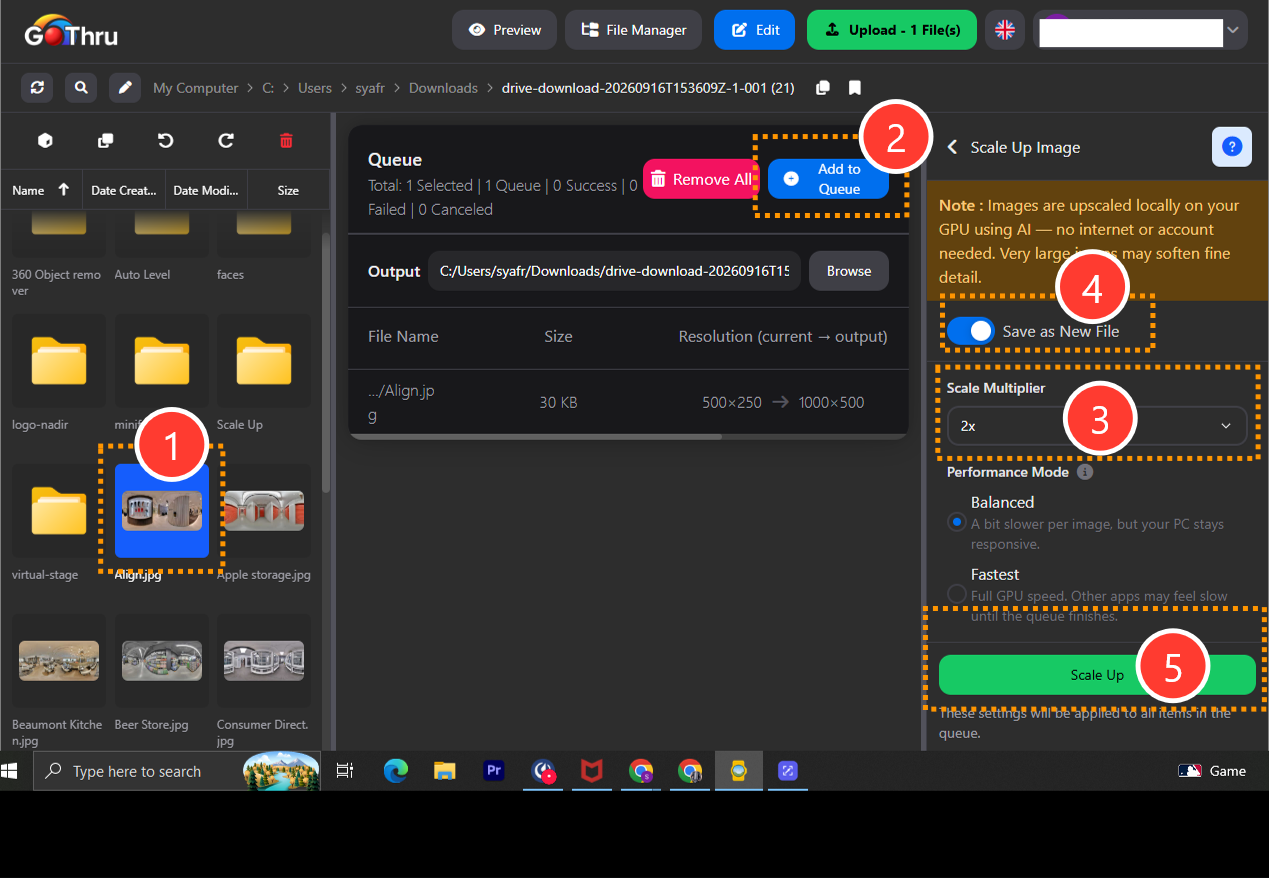
- Select the image(s) you want to scale up.
- Add them to the queue.
- Choose the scale multiplier (2x–6x) and a performance mode.
- Choose to overwrite the originals or save as new files, and set a custom output location if needed.
- Click Scale Up to start processing.
Which performance mode should I pick?
Balanced is best when you keep using your PC while the queue runs — it uses smaller GPU workloads and lower process priority. Fastest finishes sooner but uses the whole GPU, so other apps may lag until it is done.
Does it need an internet connection?
No. Upscaling runs entirely on your device using an AI model on your GPU.
What image formats are supported?
JPG, PNG, and WebP. Other formats, such as TIFF, won't appear in the file browser selection for this tool.
Why did an image fail to process?
Two common causes:
- The target size would exceed the 8192px safety limit for the chosen scale.
- Your GPU doesn't support the Vulkan driver the upscaler needs.
Check the error details in the failed-items summary after the queue finishes.
What is the final result?
Your images are upscaled to the target dimensions. If you choose to save as new files, new copies are created alongside the originals.
Where are the results saved?
If you overwrite, files are saved in their original location. If you save as new files, the output goes to the custom location you set before starting.