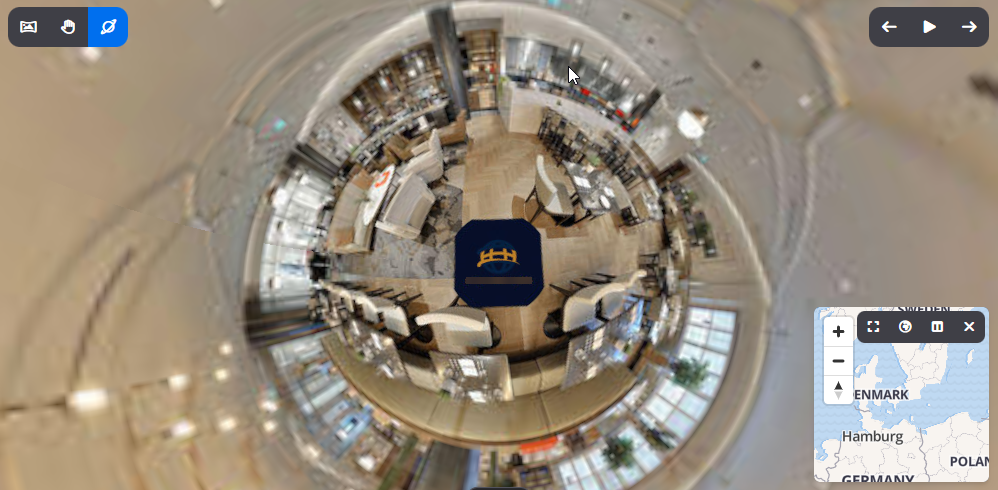
Add Your Logo to 360° Images
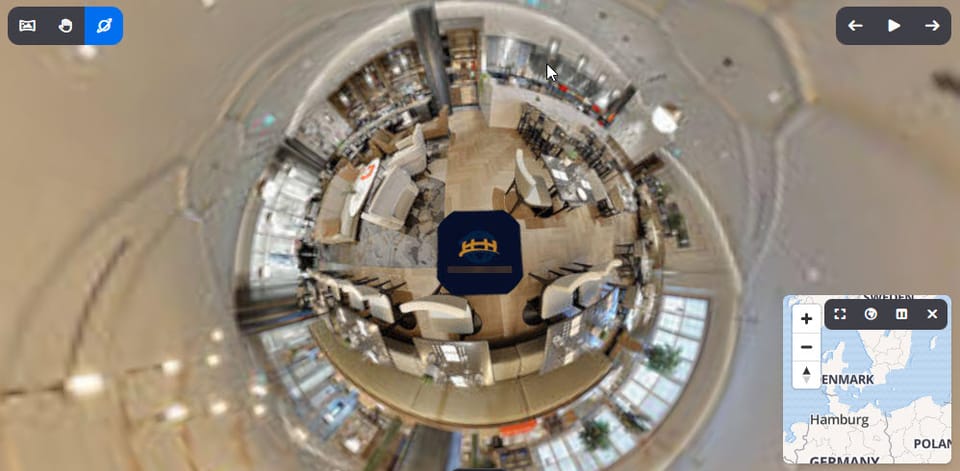
What is Logo Nadir Patching?
This tool allows you to place your custom logo at the bottom (nadir) of your 360° image. It's a great way to professionally brand your image and hide the tripod.
How do I use Logo Nadir Patching?
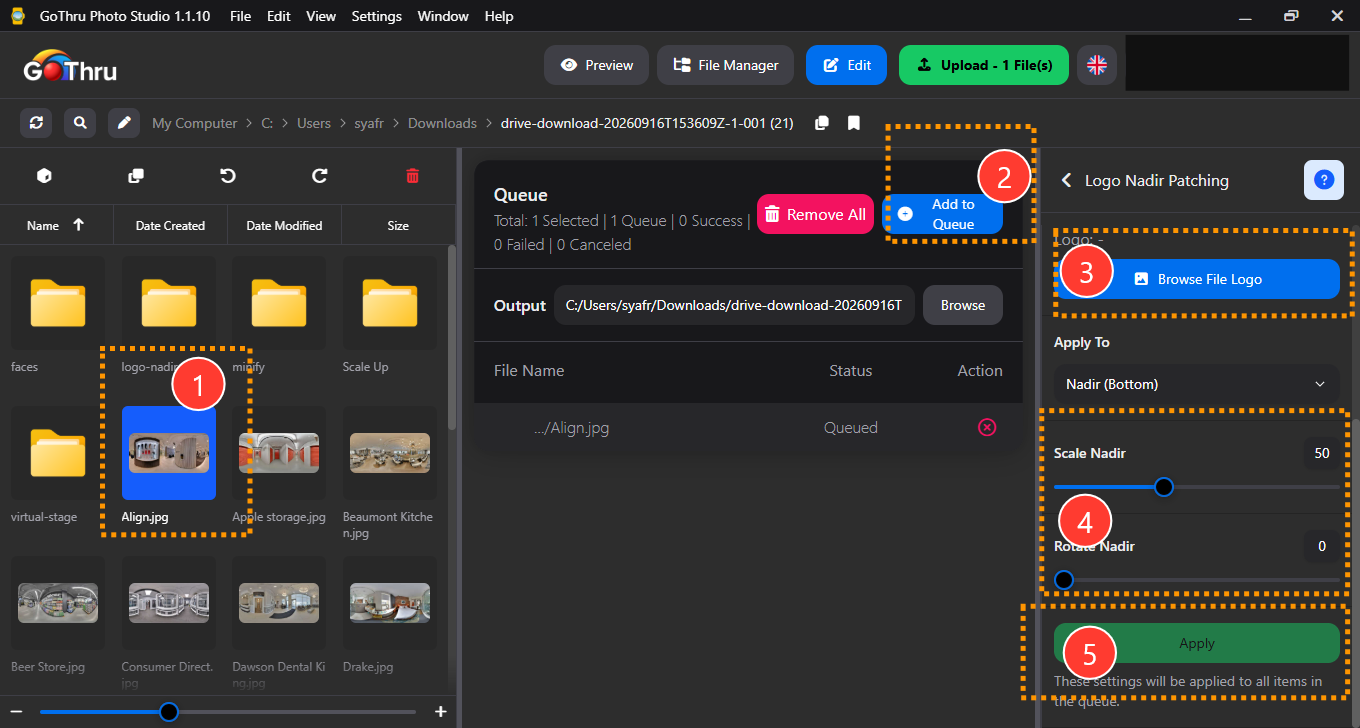
- Select the 360° image you want to brand. To select multiple images, hold
Ctrl(Windows) orShiftwhile clicking the images. - Add to queue.
- Choose or upload your custom logo file.
- Adjust the logo's size and orientation for a perfect fit.
- Press Apply.
What is the final result?
A new version of your image with a professional logo patch is created in the same location, named {filename}-logo-nadir.
Where are the results saved?
By default, the output is saved in a new folder named logo-nadir-patching_{timestamp} located in the same directory as your source files. You may also manually define a custom output location before starting the process.