
Batch Image Resize: Resize Multiple Images in Seconds
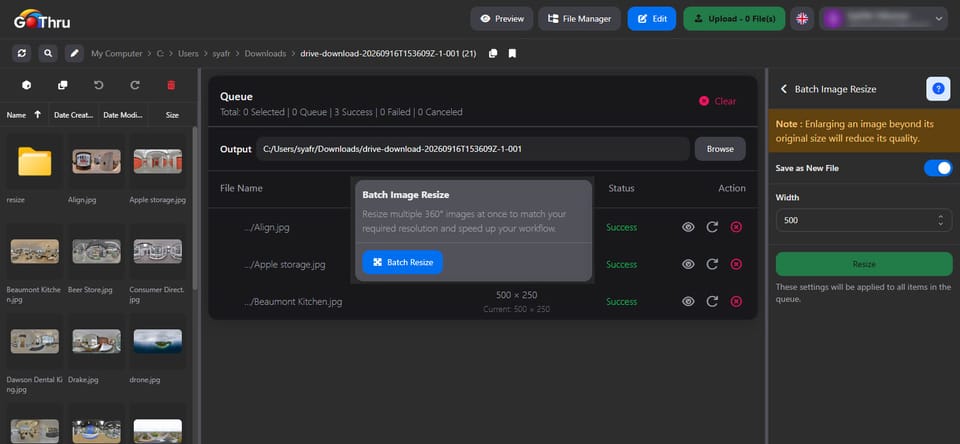
What is Batch Image Resize?
Batch Image Resize is a tool that allows you to change the dimensions of multiple images at once. You can set a target width or height and choose whether to preserve the original aspect ratio.
For 360° equirectangular panoramas, maintaining a 2:1 aspect ratio helps keep the images properly formatted. Please note that resizing an image to dimensions larger than its original size may reduce image quality.
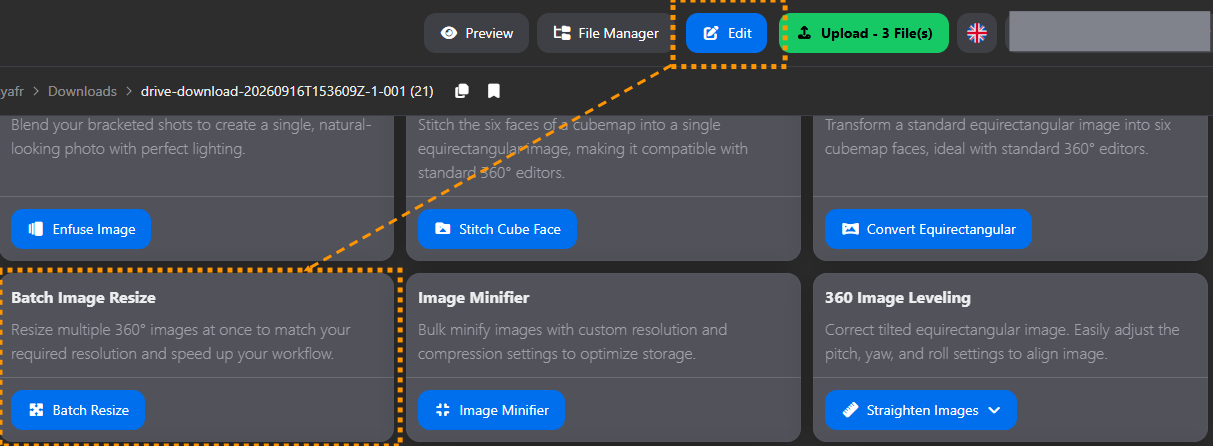
How do I use Batch Image Resize?
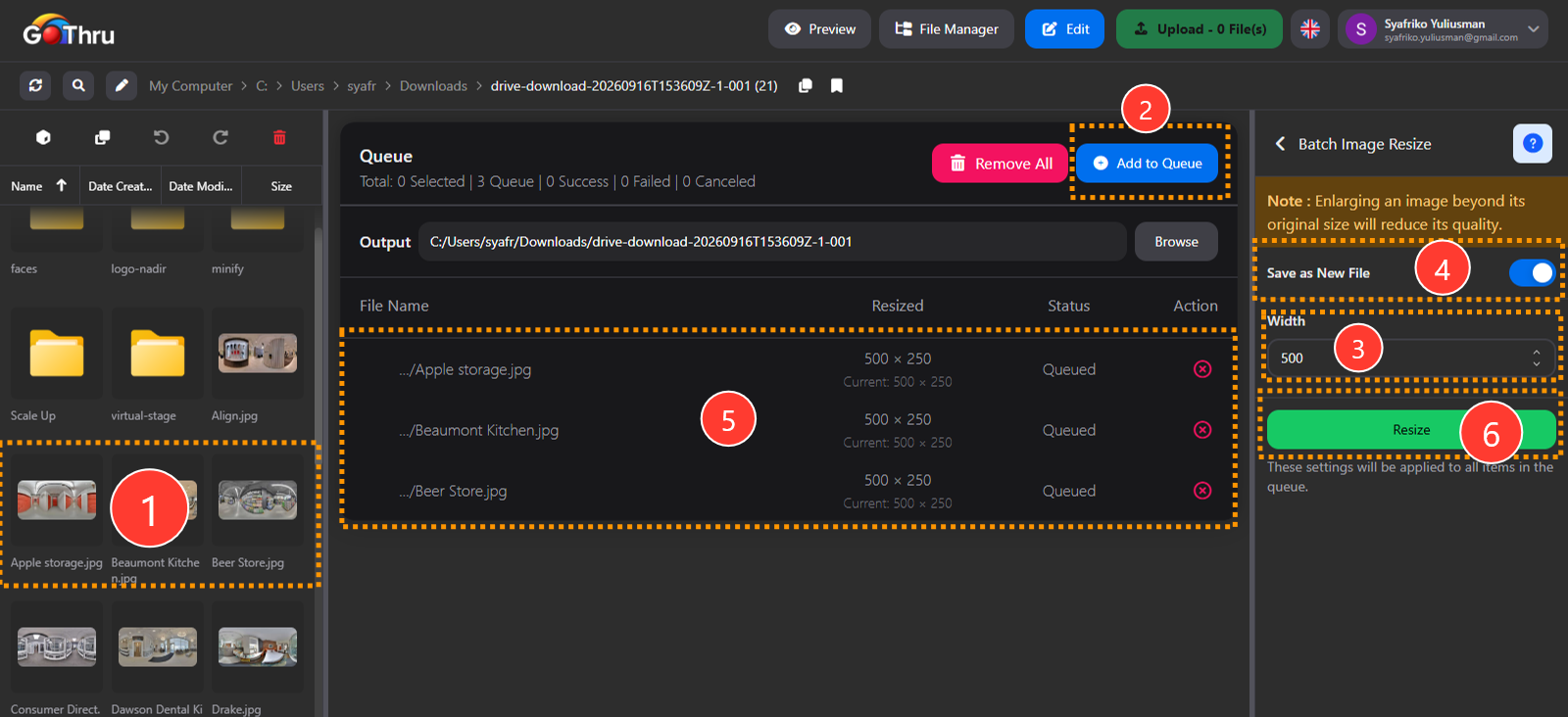
- Select the multiple images you want to resize. Use Ctrl or Shift to multi select images.
- Add the selected images to the queue.
- Adjust the desired width and height dimensions.
- Choose whether to:
- Save/Overwrite the original files, or
- Save as new file duplicate the files and create resized copies.
If you choose to duplicate the files, define a custom output location for the resized images.
5.Review the files in the queue and confirm the resize settings.
- Click the Resize button to start the process.
Monitor the progress and check the status of each file when the process is complete.
What is the final result?
The selected images are resized to your desired dimensions.
If you selected the save/overwrite option, the original files are updated with the new dimensions.
If you selected the duplicate/save as new file option, new resized files are created while the original files remain unchanged. The new files use the following naming format:
{filename}_resize
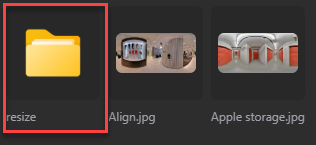
Where are the results saved?
If you chose Save as new file, the resized files are saved directly in their original location.
If you chose Duplicate/save as new file, the resized files are saved in the custom output location you selected before starting the batch resize process.
The original files remain in their original location.