Google Street View photos not showing in your tour?
Troubleshoot a missing panorama in a connected, published GoThru Street View tour. Check the public route, GoThru status, and the affected image before retrying.
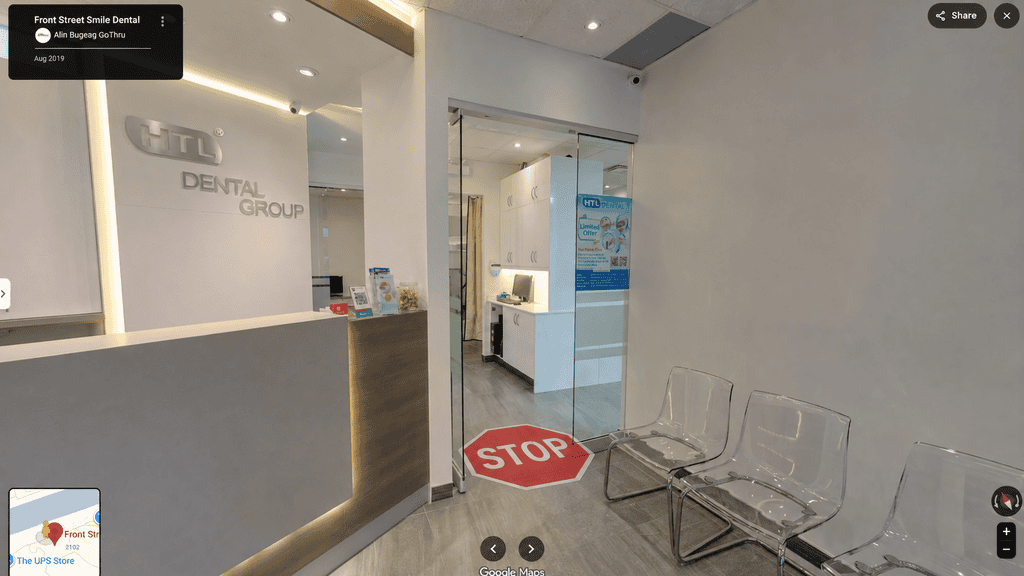
After I publish a connected tour, I open it on Google Maps and follow the route. If navigation stops before the next panorama, I check whether that image is visible at all. A missing panorama needs a different check from a visible panorama with missing arrows.
I filmed the repair on a tour with about 200 panoramas. Six were missing from Google. In the video, I use GoThru Street View Status to find the affected images, change their starting viewpoints, and test the route again. That is one tour, not a guaranteed repair for every missing Street View image.
First, check which image is missing
I don't change a published tour until I've found the point where it stops. These checks keep me from trying to repair a panorama when the real problem is a connection or a Maps display issue.
| What I see | What I check next |
|---|---|
| A blank Maps screen or older imagery | I check another browser or device and the imagery date. That view alone doesn't tell me my published panorama was rejected. |
| A new panorama has not appeared | I check when it was published and look at its status in GoThru before attempting a repair. |
| The route stops and the next panorama is absent | I compare that gap on public Maps with the affected image in Street View Status. |
| Both images appear, but the arrows are missing | I check the connection. The separate guide to missing Street View navigation arrows covers that case. |
If you're looking for a regular photo you contributed to a Maps place, check that contribution in your Google account and on the public listing. The repair below is for panoramas in a connected GoThru tour. If you have not published the tour yet, follow the tour publishing guide first.
Check the public route and allow for processing
I open the published tour on Maps and note the last panorama I can reach. Then I look for the next image on its own. If it appears independently, I investigate the connection instead of deleting the image. I also check the public view while signed out when I need to distinguish it from what my own account shows.
In my video, I check Street View Status after about 30 minutes on a smaller tour or closer to an hour on a larger one. Those are the times I chose to check, not Google deadlines. Google says links between Photo Spheres published with a third-party tool can take up to four days to process. That applies to links. It does not promise that an upload marked rejected will appear after four days.
Find the affected panoramas in GoThru
I open the tour's Street View Status and compare it with the gap I found on Maps. In the tour shown in the video, six panoramas are missing from Google and appear as Map Rejected in GoThru. When I select Edit 360 Images, GoThru marks them in magenta so I can locate each one.
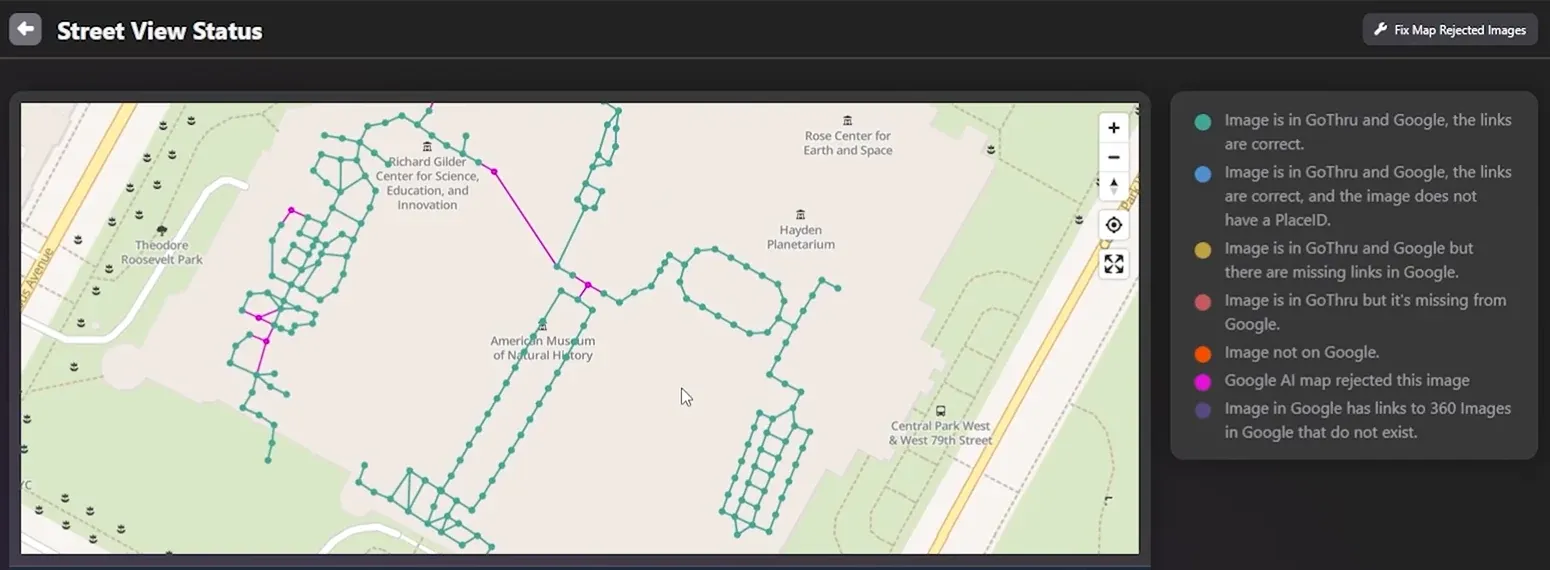
Street View Status in the walkthrough. The map and legend help locate images that need a closer check. This is a GoThru screen, not a public Maps result.
Map Rejected is the label I see in GoThru for a panorama that Google received but did not accept for map display. It isn't the name of every Google publishing error. Google's Street View Publish API describes publication status and panorama connections separately. I still check the public route because a status label won't tell me whether navigation has recovered.
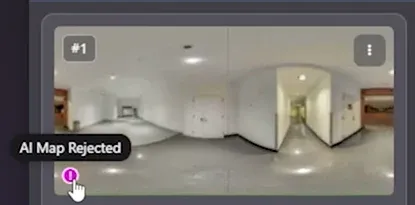
An affected panorama in Edit 360 Images. The tooltip reads "AI Map Rejected" in this capture.
If all the panoramas in a tour are affected, I use the separate all-panoramas Map Rejected guide. I wouldn't delete an entire tour to address one missing transition.
Recenter a panorama rejected by mistake
Google doesn't give me a precise explanation of what its automated review detected in each image. I have seen skin-like colors in posters, human-shaped art, curved walls, and long hallways in panoramas that appear to have been rejected by mistake. These are my observations, not Google's published rejection rules. I use this method only when the image itself complies with Google's policies.
Before I remove a rejected Google copy, I make sure the source panorama is still available in my GoThru tour and identify the exact image that is missing. Then I follow the sequence shown in the video.
- I use the image's three-dot menu to delete the rejected copy from Google.
- I open the Image Centering Tool in GoThru.
- I rotate the panorama so the suspected trigger is no longer in the initial view, then apply the new center.
- I republish the affected images and return to Street View Status after Google processes them.
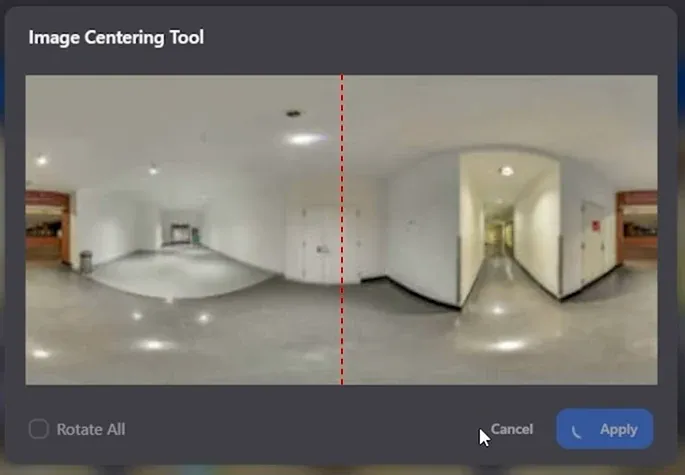
The Image Centering Tool in the walkthrough. This shows the control before the repair is applied, not a successful Google Maps result.
Recentering changes the initial viewpoint. It does not remove anything from the 360 image. The GoThru Map Rejected repair guide covers another repair path, although its screenshots may show an earlier interface. Check the controls in your account before deleting a Google copy.
Test the image and the connection separately
After republishing the six affected panoramas in the video, I check Street View Status again after about 10 to 15 minutes. Five are accepted after my first recentering attempt. That result and timing belong to this tour. I cannot promise the same outcome for another image.
I return to the exact spot where navigation stopped. I check whether the image appears on Maps, then try the transition. Sometimes I can see a panorama before its navigation links are ready. I give published links time to process and check the connection again. If the image is still absent, I inspect its status before retrying rather than republishing blindly.
What I do when recentering is not enough
One panorama in the video remains rejected because I cannot find an initial view that avoids the areas I suspect. I use a selective blur on the affected part of that image, apply it in Moderator, republish, and check again. The current GoThru blur guide covers selecting and applying a blur. I review the result before republishing, especially when faces or license plates need privacy protection. Blur is not a way around Google's content policy.
When Google shows a specific publishing failed message, I read the error instead of treating it as Map Rejected. Google's troubleshooting guide covers issues such as low resolution, duplicates, bad location information, and corrupt files. If imagery was removed for a contributed-content policy violation, I address the underlying issue. Google decides what it displays.
If an image remains missing after a deliberate retry, I keep the tour ID, affected panorama, status, publish time, and public route together for GoThru support. I send those details privately. GoThru Moderator is where I inspect, edit, and republish the connected tour, but the final Maps result is Google's decision.