
Slideshow Video: Create a Video That Rotates 360 Degrees on Each Selected 360 Image
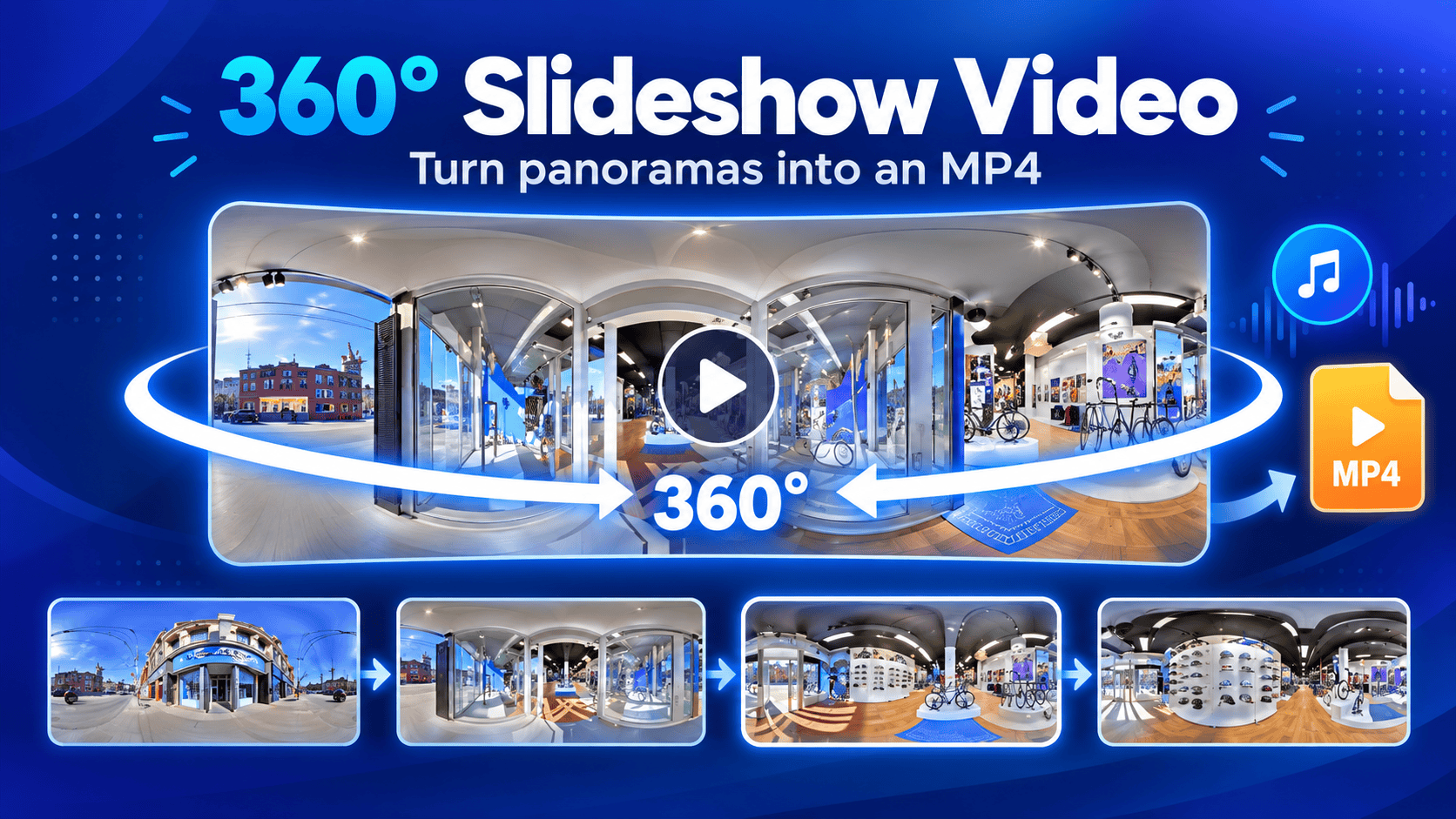
Create a slideshow video that automatically rotates 360 degrees around each selected 360 panorama. Choose the panoramas you want to include, customize the rotation, add music, adjust timing and video settings, and generate your MP4 video.
What this does: Slideshow Video creates a video that rotates around each selected 360 image before moving to the next panorama.
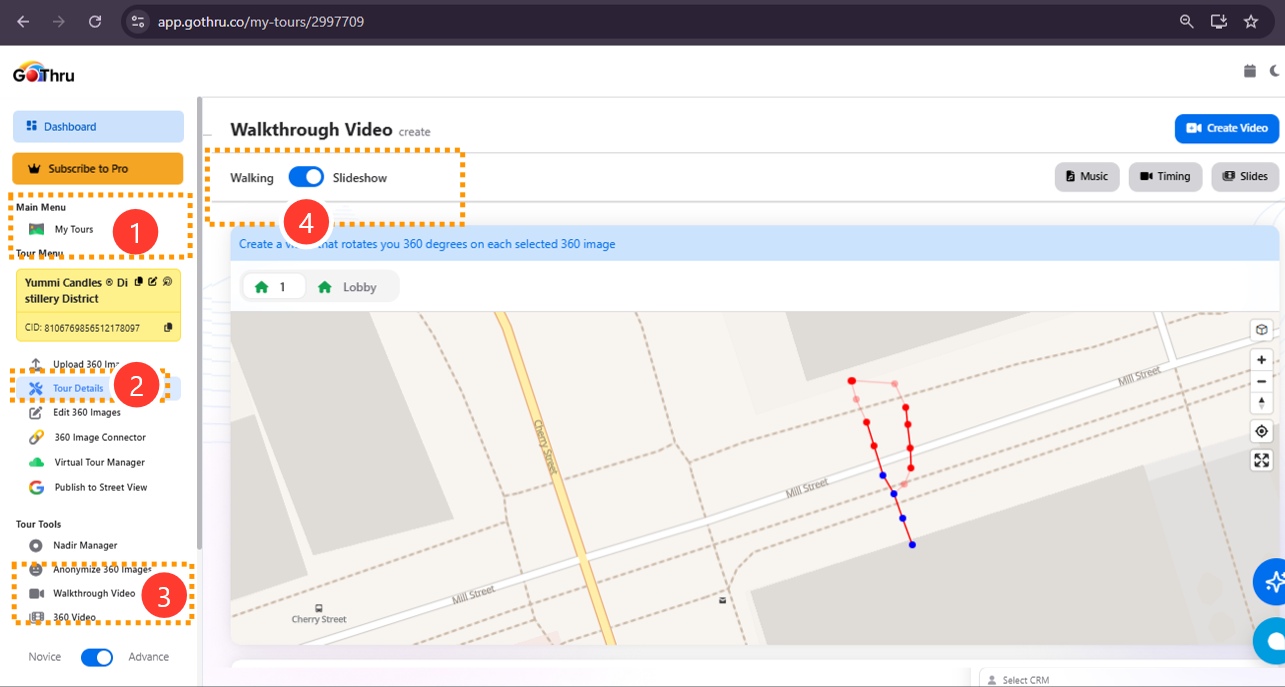
1. Open the Walkthrough Video editor
Open the tour you want to use and go to the Walkthrough Video creation page.
2. Select Slideshow
At the top of the editor, switch from Walking to Slideshow.
Once Slideshow is selected, GoThru displays the slideshow editing controls.
The page allows you to select the panoramas that will be included in your video and configure how each panorama is displayed.
3. Select the panoramas for your slideshow
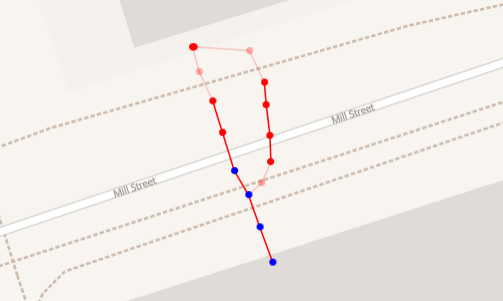
The map displays the 360 panoramas available in your tour.
Click the first panorama you want to include.
Then select additional panorama points on the map to add them to the slideshow.
Your selected panoramas appear in the film strip.
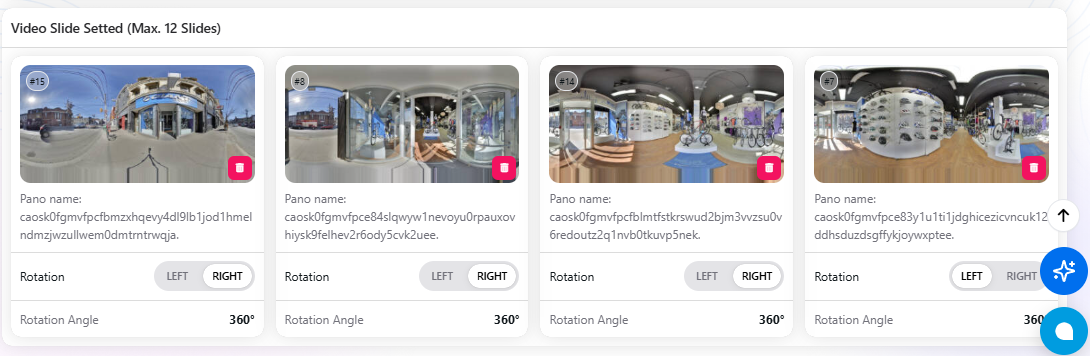
4. Manage the film strip
The film strip shows all panoramas currently selected for the slideshow.
You can use the film strip to manage the sequence before creating the video.
You can:
- Remove the last selected panorama.
- Review the selected panoramas.
- Change the panning direction.
- Set the rotation amount for the panoramas.
5. Set the rotation for each panorama
Use Degrees per panorama to determine how far the camera rotates around each selected 360 image.
6. Choose the panning direction
Use Panning direction to control the direction in which the panorama rotates.
Choose the left or right direction depending on the movement you want in the final video.
7. Add background music, Set the rotation duration, and Add custom front and back slides
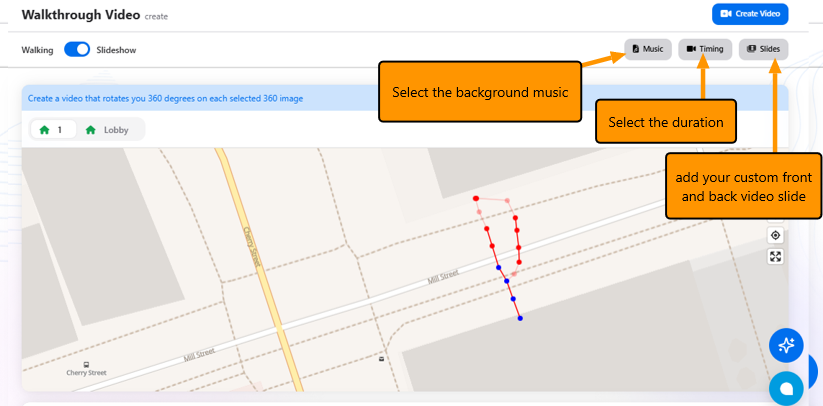
11. Create the slideshow video
When all settings are ready, click Create Video in the upper-right corner of the page.
GoThru will process your selected panoramas and generate the slideshow video.
12. Download your MP4 video
You will receive an email with a link to download the file, mp4 format. The link is valid for two weeks.
The following is the email example:

You can also download the video, once it has been created by using the download button on the editing page.