How To Create An Virtual Tour Template in GoThru
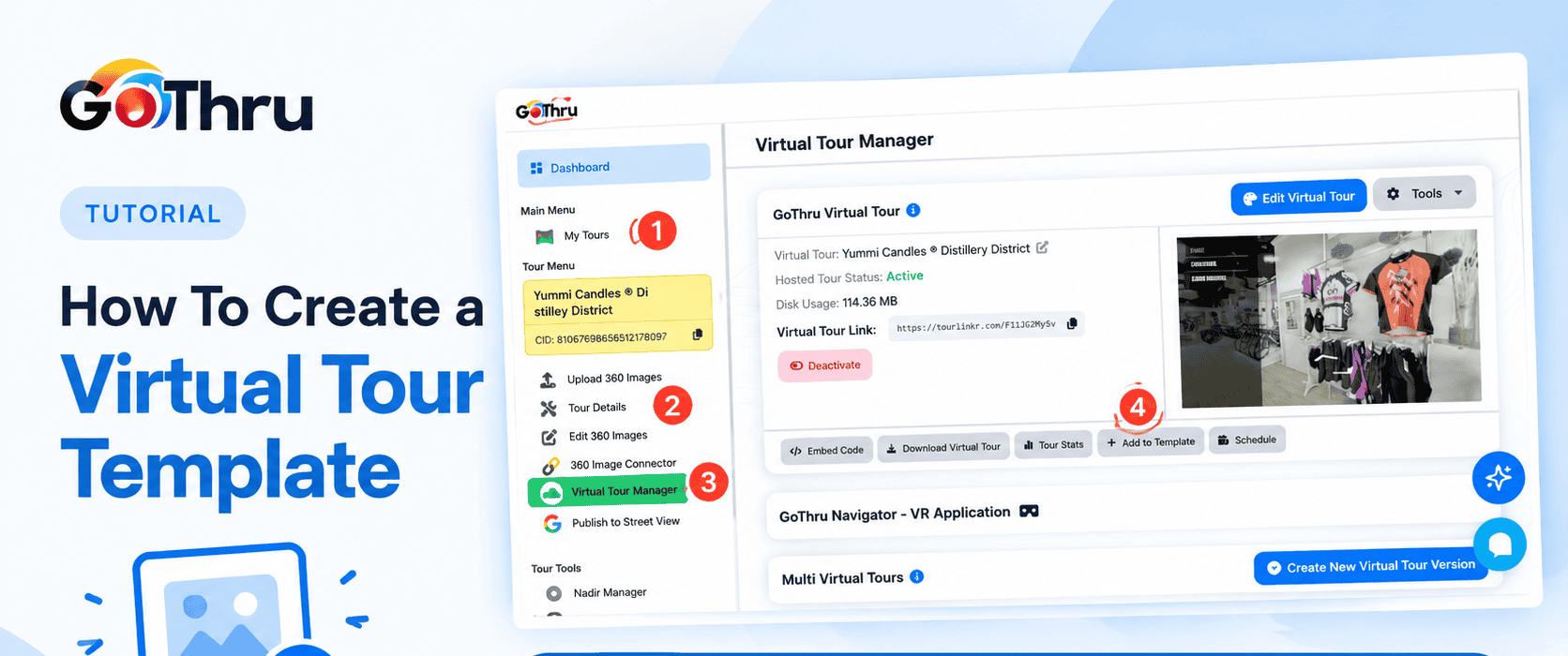
GoThru Virtual Tour Manager allows you to save an existing virtual tour as a personal template. You can then use this template to quickly create a consistent layout and design for other virtual tours.
Follow these steps to create a template from an existing virtual tour.
1. Open your tour
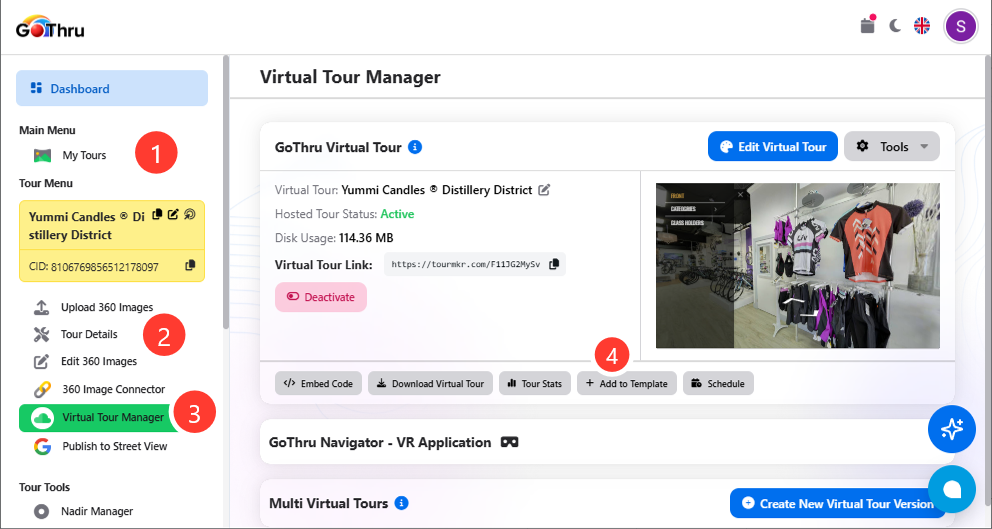
Go to My Tours and locate the virtual tour you want to use as the basis for your template.
2. Open Virtual Tour Manager
From the Tour Menu, select Virtual Tour Manager.
The Virtual Tour Manager displays the settings and management options for your virtual tour.
3. Locate the template option
In the Virtual Tour Manager, locate the action buttons below the virtual tour information.
Click Add to Template.
Add to Template saves the current virtual tour layout as a personal template that can be reused for other tours.
4. Create the template
After clicking Add to Template, GoThru will create a new personal template based on the current virtual tour.
The template is saved to your Template library and can be used when creating or configuring other virtual tours.
5. Use your template
Your new template can now be selected when you want to apply the same virtual tour layout and configuration to another project.
That's it! You can now reuse your customized virtual tour design without rebuilding the layout from scratch.
 Syafriko Yuliusman