How To Clone A Tour With Pano ID
There are two ways of cloning a tour on GoThru, the first one cloning without pano ID and the second one is cloning with pano ID. In this tutorial, you are going to look at how to clone a tour with pano ID.
Cloning with Pano ID is useful when you wish to maintain a tour with the pano ID per pano when cloning for the purpose of fixing the issue where the panoramas did not have the PlaceID in Google because they were published to an address and not associated with any GMB page.
To fix this, you must import the panoramas from Google, using the Map Import function, but this will create an sv_ (CID) listing in GoThru, so you must Clone and maintain the PanoID's to the real CID, then you can publish that tour and the panoramas will update with the Place ID.
Here are the steps on how you clone it.
Step 1: Get the CID
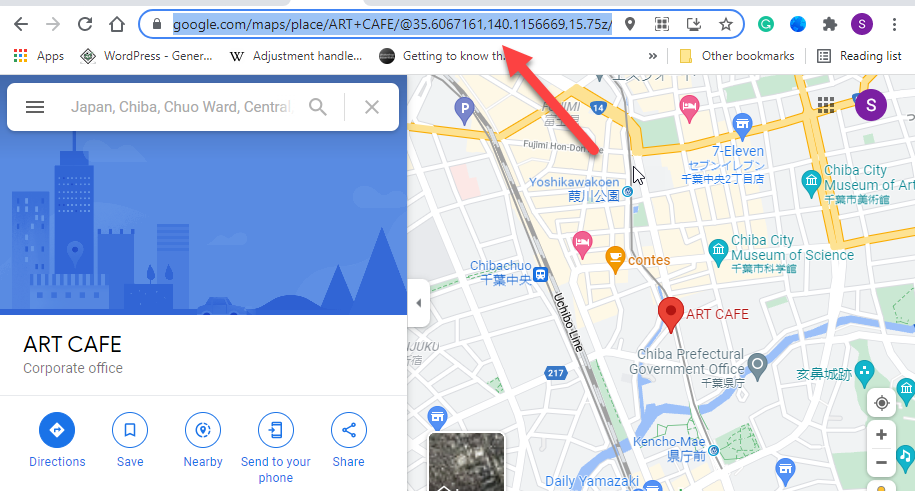
1. Go to Google Maps. On Google Maps, go to your location and copy the Google Maps business page URL.
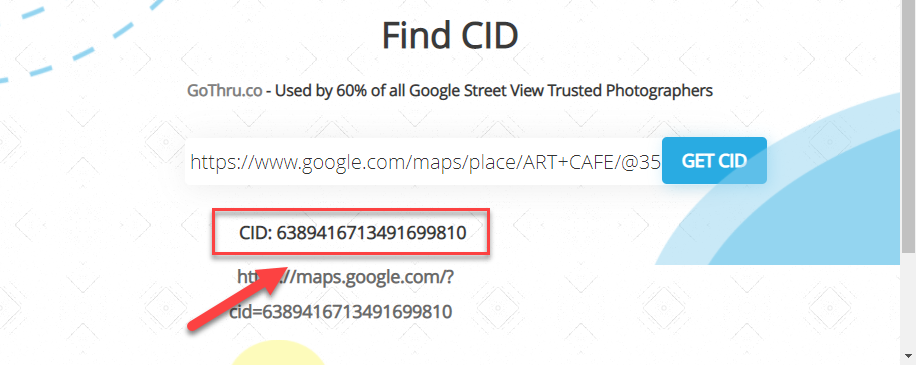
2. Go to the CID Finder (https://cidfinder.com/). On the CID finder, paste the Google Maps business page URL in the field and click the Get CID button. Then select and copy the CID.
Step 2: Clone the Tour
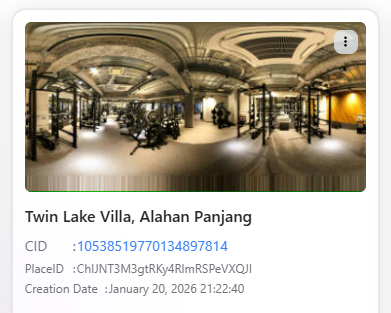
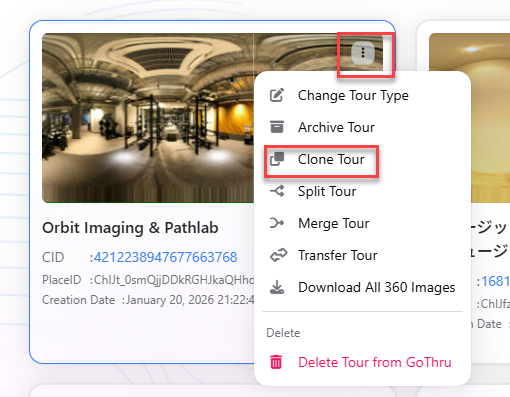
- From the My Tours page, locate the tour you want to clone.
- Click the three-dot (⋮) menu in the upper-right corner of the tour card.
- Select Clone Tour from the menu.
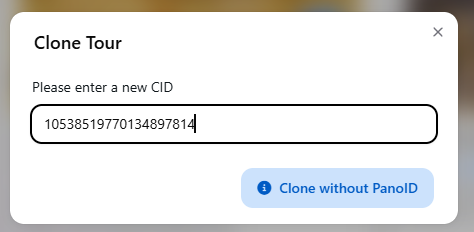
- In the Clone Tour dialog, enter the correct CID for the destination tour.
- Select Clone with Pano ID to preserve the panorama IDs, then click Clone to begin the process.
Note: If the tour contains a large number of panoramas, the cloning process may take a little longer to complete.
- Once the cloning process is finished, GoThru will notify you, and the cloned tour will appear in your My Tours list.
Important: Cloning with Pano ID creates a copy of the tour while preserving the existing panorama IDs. All panorama positions, links, and metadata are copied to the new tour.
- You can now edit the cloned tour or publish it to Google Street View as needed.